Tier 0 Attack Path Cut Plan: The Fewest Changes That Cut Every Path
See which accounts outside Tier 0 have an attack path to it, and get the smallest ordered set of changes that cuts every path.
On this page
- Overview
- Prerequisites
- What counts as Tier 0
- Treated as Tier 0 by design
- The Tier 0 objects list
- Read the Dashboard Cards
- Step-by-Step
- Open the plan and read the summary
- Read the steps table
- Read a step's detail
- Run a step in Select Fire
- Handle a manual step
- Read "No change available"
- States
- Rights granted to Everyone and Authenticated Users
- Who Can See What
- Configuration
- Troubleshooting
- The page says "Calculating"
- The page shows a stale or skipped banner
- The summary is zero but I expect paths
- The numbers didn't change after I ran a step
- A step I expected is missing
- "Couldn't open this change. Try again."
Overview
Tier 0 is the set of identities and objects that control your directory: Domain Admins, domain controllers, the domain object, AdminSDHolder and the like. An attack path is a chain of memberships, permissions, delegations and other edges that lets an account outside Tier 0 take control of it. Most estates have dozens of such paths, and fixing them one finding at a time is slow.
The cut plan answers two questions after every reach analysis:
- How many accounts outside Tier 0 have an attack path to it? The count is split into active, dormant and activity unknown.
- What are the fewest changes that cut every one of those paths? The plan orders them by how many accounts each change cuts off, so you spend your first change window where it matters most.
Each step is one change: remove a membership, remove a permission entry, unlink a GPO, revoke a grant, stop Tier 0 sign-ins on a host, or disable an account. The plan never proposes disabling an account in use. A step that GraphnAI can make opens in Select Fire. A step it can't make says why and tells you how to do it by hand.
The plan covers every domain, forest and tenant that the reach analysis covers, as one plan. A child-domain account that reaches Enterprise Admins is cut once, not counted twice.
Prerequisites
- Role: Viewer sees the dashboard cards. Operator sees the Cut plan page and runs steps. Select Fire follows its own role rules, described in Select Fire.
- Reach analysis on. The plan is calculated at the end of each reach analysis. With it off, nothing is calculated.
- A full sync of at least one domain.
Only Active Directory accounts are counted: enabled users, computers and service accounts outside Tier 0. An account that exists only in Entra ID isn't counted yet. A hybrid person counts once, as the Active Directory account.
What counts as Tier 0
For the cut plan, Tier 0 is wider than the Tier 0 tag on the Identity Inventory. It includes:
- identities rated Critical, and members of a Tier 0 group;
- every domain object and writable domain controller;
- AdminSDHolder and the Domain Controllers OU of each domain;
- any GPO linked to a Tier 0 object;
- certificate authorities and the computers that host them;
- directory synchronization accounts, such as Microsoft Entra Connect and Cloud Sync accounts;
- the accounts GraphnAI uses to make changes in your directory.
It leaves out broad groups: Everyone, Authenticated Users, BUILTIN\Users, Domain Users and Domain Computers. It also leaves out accounts that are tagged Tier 0 only because they belong to a broad group.
Treated as Tier 0 by design
Some accounts hold Tier 0 rights because their job needs them. A directory synchronization account holds DCSync on the domain object so it can read password hashes. GraphnAI's own change accounts hold write rights so Select Fire and undo work. Cutting those rights would break synchronization or every undo, so the plan counts these accounts as Tier 0 and proposes nothing against them. Anyone who can reach one of them has an attack path.
A directory sync account must pass checks beyond its name. A copied name isn't enough. An account named like an Entra Connect account, but without the matching installer description or DCSync right, stays an ordinary account. Its DCSync right becomes a manual step.
The Treated as Tier 0 by design table on the Cut plan page lists these accounts with their domain and reason. A Server column shows the computer an Entra Connect account's description names. The server that runs directory synchronization isn't treated as Tier 0 yet, and the page says so.
The Tier 0 objects list
The list shows what the plan treats as Tier 0 and why. Each row has a name, type, domain, reason and whether an account can reach it today. Objects that no path touches sit under Not on any path. A Left out line counts the broad groups and the accounts tagged Tier 0 only through one, with samples.
Read the Dashboard Cards
On the Risk Posture Dashboard, the Attack paths to Tier 0 section sits below the factor cards. It doesn't feed the risk score. It has four cards:
| Card | What it shows |
|---|---|
| Accounts with an attack path | Accounts split into Active, Dormant and Activity unknown |
| Share of active accounts | Active accounts with an attack path against all active accounts. A dash appears when there are no active accounts. |
| Tier 0 objects | How many objects are Tier 0, and how many Can be reached or Not reached |
| Changes that cut every path | The step count, split into Select Fire and Manual |
The heading line shows "Calculated" with the time of the reach analysis. Choose a domain on the dashboard to scope cards 1, 2 and 4. The Tier 0 objects card always counts the whole estate.
Operators also see an Open the cut plan link, and can select the Tier 0 objects card to open the list. Viewers see the cards only.
Dormant accounts count as able to act. An account with no recorded activity is shown as Activity unknown, apart from the other two. Active and dormant use the same inactivity thresholds as the Stale preset: users 90 days, computers 30 days, service accounts 180 days.
Step-by-Step
Open the plan and read the summary
- Select Cut plan in the sidebar, under Analysis. Only Operators and above see this row.
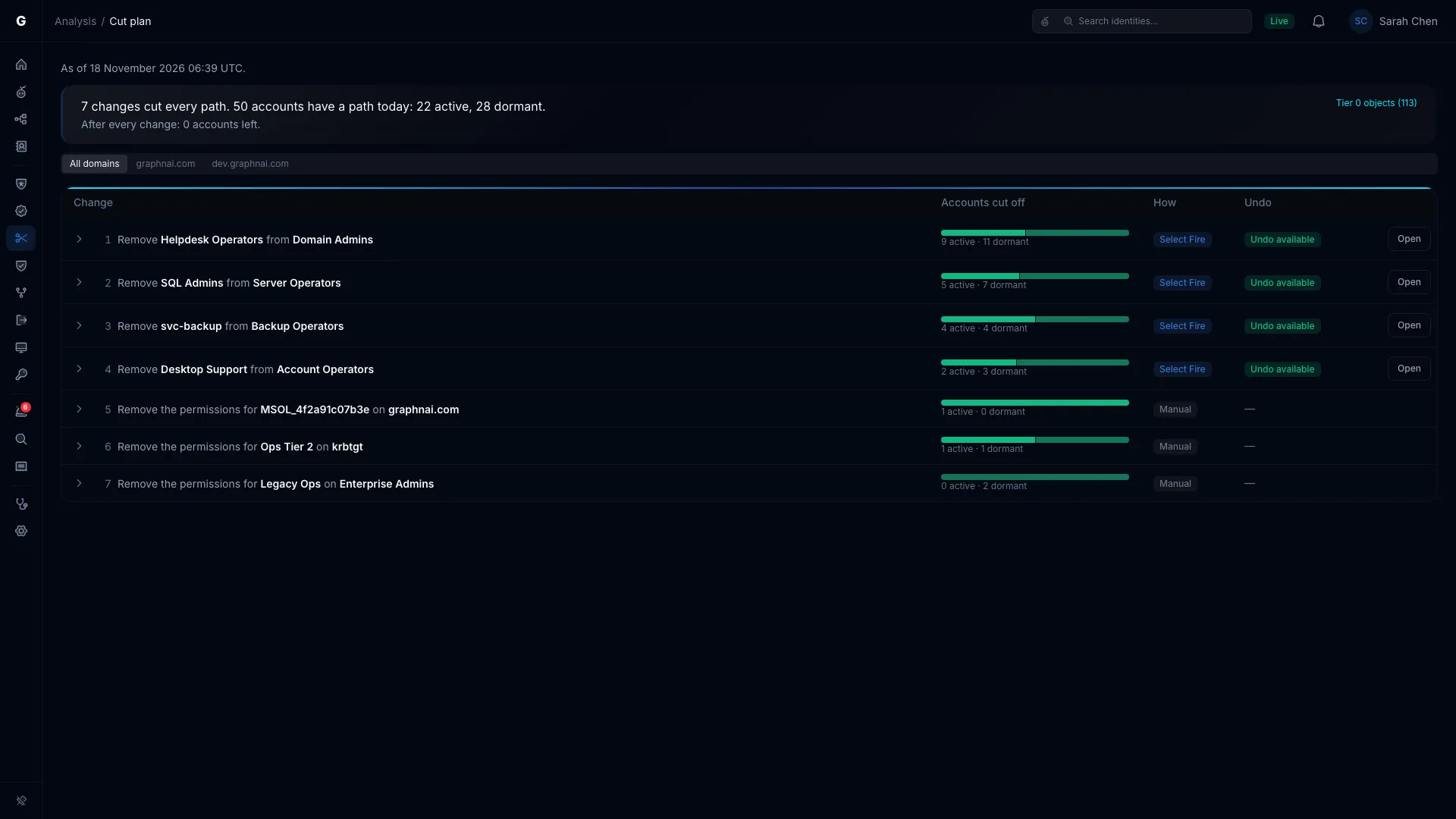
- Read the line under the page header, for example: "3 changes cut every path. 12 accounts have a path today: 9 active, 3 dormant."
- Read the line beneath it: "After every change: 0 accounts left." If it's above zero, a second line says how many accounts have no change available.
"As of" gives the time of the reach analysis the plan came from. When nothing outside Tier 0 can reach it, the page reads "No account outside Tier 0 can reach it."
To see the plan for one domain, use the Domain control above the table. It appears when the plan covers more than one domain. The filter narrows the steps table. The summary line keeps counting the whole estate.
Read the steps table
Each row is one change, numbered in the order to make them. The columns are:
| Column | Meaning |
|---|---|
| Change | The change in plain words, such as "Remove svc-backup from Domain Admins" |
| Accounts cut off | A bar and legend: active, dormant and activity unknown |
| How | Select Fire if GraphnAI can make the change, Manual if you must |
| Undo | Undo available, Can't be undone, or a dash for a manual step |
A row can say "Cuts off accounts together with step 2". That change and the other one cut the same accounts, so you can make them in either order. A row that says "Done, waiting for the next reach analysis" has been run (see Run a step in Select Fire). A plan with more than 100 steps pages with Previous and Next.
Read a step's detail
Select a row to open it.
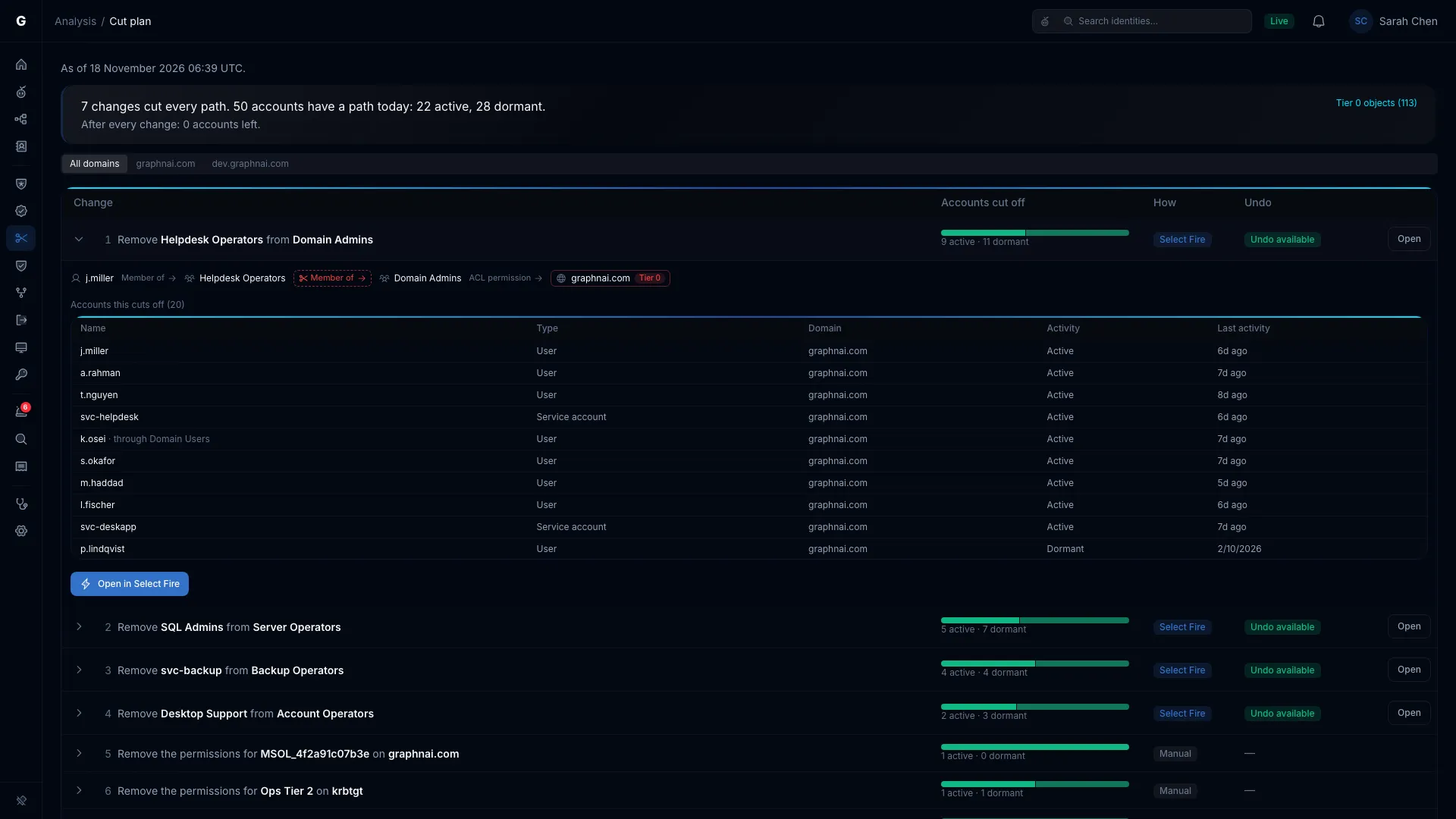
- The path chain. One example attack path from an account to Tier 0, drawn as a chain of nodes and edges. The last node carries a Tier 0 badge. The edge this step cuts has a scissors icon and a dashed outline.
- Accounts this cuts off. A table of the accounts, with name, type, domain, activity and last activity. A name can read "through Domain Users" when the account reaches the step by way of a broad group.
- Cautions. These lines appear when they apply:
- "This account has no recorded sign-in activity." appears on a disable step that covers accounts with unknown activity.
- "If this account runs directory synchronization, removing this right stops password hash sync. To keep it, rate the account Critical so the plan treats it as Tier 0."
- The action. Open in Select Fire for a step GraphnAI can make. For a manual step, a Manual badge and the reason, such as "Edit the permissions on AdminSDHolder. SDProp copies the change to every protected object within an hour."
- Also closes N posture findings. A link to Security Posture when the same change fixes posture findings.
Run a step in Select Fire
- In the steps table, select Open on the row, or Open in Select Fire in its detail. Only steps marked Select Fire that aren't Done have the button.
- Select Fire opens with the account, target and entries already chosen. A "Cut plan step" card names the change and how many accounts it cuts off.
- Select Simulate to see the blast radius of the change. For a disable step, the button reads Continue, because disabling has no access change to simulate.
- Decide on the Decision step and run the change. See Select Fire for the execution modes and the Operational Safety Metric.
- Back on the Cut plan page, the row reads "Done, waiting for the next reach analysis".
One step is one change. Opening a step never starts another one. A step that can't be undone is marked Can't be undone in the table, and Select Fire doesn't run it from the Decision step. See Remediation Reversibility and Undo.
The counts, the summary line and the dashboard cards don't move when you run a step. They move at the next reach analysis, which proves the change cut the path.
Handle a manual step
A manual step has no Open button. Its detail gives the reason and where to make the change: Active Directory Users and Computers, Group Policy Management, or the Certification Authority console. Examples:
- A primary group change: "Set a different primary group on the account, then remove it from this group."
- A GPO permission: "Change the GPO's permissions in Group Policy Management, so its SYSVOL files change too."
- A right granted to Everyone or Authenticated Users that GraphnAI couldn't confirm isn't a default: "GraphnAI can't tell yet whether Windows or another product relies on this permission. Check what uses it, then remove it with the fix script on its finding."
- An entry that SDProp restores: "SDProp removes this entry on its next run. If it comes back, find what adds it."
After you make the change, the step disappears at the next reach analysis.
Read "No change available"
Below the steps table, No change available lists access that holds a path and can't be removed. Each row has the access, the accounts it affects and a reason. Examples are memberships Active Directory creates, the built-in Administrator and krbtgt accounts, same-forest trusts, the Default Domain Policy link, and the last Global Administrator role.
Two extra lines can follow a reason:
- "The plan doesn't propose disabling an account in use." appears when the row holds active accounts.
- "This account is protected, so the plan doesn't propose disabling it." appears when the deny list blocks the disable of a dormant or activity-unknown account.
These accounts keep a path after the plan runs. They're why "After every change" can be above zero.
States
The page and the dashboard cards share one state, set by the latest reach analysis.
| State | What you see |
|---|---|
| Calculating | "Calculating. The cut plan appears after the next reach analysis." The cards show dashes. This is normal after an upgrade or a reset. |
| Ready | The plan, with the time of the reach analysis |
| Stale | The previous plan, with a banner such as "The last reach analysis couldn't update this plan." Variants say the plan didn't cut every path so it wasn't saved, or that it ran out of time. |
| Skipped | The previous plan, with a banner such as "The last reach analysis didn't update this plan (not enough memory)." Another variant says it couldn't read the data the plan needs. |
| Off | "Reach analysis is off, so the cut plan isn't calculated." |
In the stale and skipped states, the banner ends with "Showing the plan from" and the time. The plan updates itself at the next successful reach analysis.
Rights granted to Everyone and Authenticated Users
A path can start from a right granted to Everyone or Authenticated Users. Windows makes every account in the forest a member of both, so the right reaches all of them. The plan counts these paths and lists a step for each right. The step names the trustee "Everyone" or "Authenticated Users".
GraphnAI adds these rights at each domain's next full sync. Until every domain has had one, an information banner reads: "Rights granted to Everyone and Authenticated Users are added at each domain's next full sync. Until then, paths that use them are missing from this plan." While it shows, treat a clean plan as a lower bound. The banner clears on its own after the last domain's full sync.
GraphnAI judges each of these rights against the domain's schema defaults, and the verdict decides what you can do:
- Not a default. You can remove it through Select Fire or from the cut plan. The confirmation asks you to type the object's name and shows how many accounts in the forest are affected. You can undo the removal.
- A default. Outside Tier 0, the right isn't reported. On a Tier 0 object it's reported with a "default permission that" line, and the confirmation repeats it: "This is a default permission that Windows relies on. Removing it can stop that feature working for" the object. Certificate enrolment (Enroll and AutoEnroll) is a known default and names that feature.
- Not confirmed. The finding carries the note "GraphnAI couldn't confirm that this permission isn't a default. Remove it with the fix script after checking what uses it." You remove the right with the finding's fix script.
GraphnAI can't confirm that a right isn't a default when:
- it hasn't read the domain's schema defaults yet, or the last read failed;
- no full sync has run since the defaults changed;
- the object is protected by AdminSDHolder;
- the defaults don't cover the object's class;
- the object is under CN=System, CN=Program Data, Microsoft Exchange System Objects or the Microsoft Exchange Security Groups OU;
- the source of the right can't be traced.
An entry a container passes down is removed at the container. GraphnAI judges it by every object the container passes the right to, and it's not confirmed if any of them is.
GraphnAI can refuse the removal in two cases. If the remediation account would lose its only way to change the object's permissions, use the fix script. If the domain's bridge needs updating, the refusal says so: "Update the bridge for this domain to remove this permission from here. Until then, use the fix script on the finding."
Nothing here runs automatically. Every removal needs a person to confirm it.
In the cut plan, a step for a right shown not to be a default, or a default on a Tier 0 path, can be opened in Select Fire. A step for a right that isn't confirmed is manual. In the opened step, "Accounts this cuts off" counts the accounts of the whole forest, and the Domain column splits them by domain.
Who Can See What
| Role | Dashboard cards | Cut plan page, steps, Tier 0 objects | Run a step |
|---|---|---|---|
| Viewer | Yes, without account names | No | No |
| Operator | Yes, with links | Yes | Through Select Fire, within its role rules |
| Admin | Yes, with links | Yes | Through Select Fire |
The card figures are counts only. Account names appear on the Cut plan page.
Configuration
The cut plan has no settings of its own. It runs when reach analysis runs. Two things change what it shows:
- Asset criticality. Rating an account Critical makes the plan treat it as Tier 0. See Asset Criticality.
- Attribute collection. If you turn off collection of the
descriptionattribute for a domain, GraphnAI can't confirm Entra Connect accounts there. The step for such an account says "Descriptions aren't collected for this domain, so this account couldn't be confirmed as a directory synchronization account."
Troubleshooting
The page says "Calculating"
No reach analysis has finished since the plan last reset. Wait for the next run. Open Platform Health if reach analysis never completes.
The page shows a stale or skipped banner
The plan shown is from an earlier run. The banner names the reason. For "not enough memory", give the server more memory, or contact support.
The summary is zero but I expect paths
Check the banner about Everyone and Authenticated Users. Until every domain has had a full sync, paths that use those rights are missing. An Entra-only account isn't counted either.
The numbers didn't change after I ran a step
They change at the next reach analysis. The row reads "Done, waiting for the next reach analysis" in the meantime.
A step I expected is missing
The account may be treated as Tier 0 by design, or its access may sit under No change available. Check both tables.
"Couldn't open this change. Try again."
The step's details couldn't be read. Retry. If it keeps failing, the plan may have been replaced by a newer one: reload the page.