Account Security & Credential Hygiene Checks
Checks on account, credential and privileged-group hygiene across your identity graph, run after every sync and listed as findings on the Security Posture page.
Requires role: Operator or Admin
Related: Risk Posture Dashboard, Delegation Risk, Identity Inventory, Select Fire, Asset Criticality
Overview
The Security Posture page (Exposure > Security Posture) grades your environment against a catalogue of security checks. Each failing check becomes a finding, with the steps to fix it. Account security is the first and largest category in the catalogue: 24 checks on the accounts, credentials and privileged groups the Identity Bridge collects.
The checks run after each sync, with nothing to turn on. What you control is how many of them can run: a few read attributes your attribute-sync profile can leave out.
The checks fall into five groups: credential and account flags, built-in accounts, privileged groups, naming attributes, and forest-wide checks. Each group is described below.
Prerequisites
- Role: Operator or Admin, to see findings and act on them. Viewers don't see the Security Posture page.
- Data: At least one successful sync from an on-premises Active Directory domain. Almost every check here is specific to Active Directory. Entra ID identities don't carry
userAccountControl,pwdLastSetorsIDHistory, so on an Entra tenant those checks read Doesn't apply. Only three evaluate there: the mailbox check, the orphaned adminCount check and the forest-wide privileged account count. - Attribute coverage: The checks read from your resolved attribute-sync profile.
pwdLastSetanduserAccountControlare required and can't be left out.mailanduserPrincipalNameare recommended but optional. Leaving one out turns off only the checks that need it. - After a bridge upgrade: The reversible encryption check reads a raw value that newer bridges collect beside the decoded flags. If that check's findings look sparse right after an upgrade, run a full sync.
How results read
Each check reaches one of four results for each connector it runs on:
| Result | Meaning |
|---|---|
| Passing | The check ran and found nothing wrong. |
| Failing | The check ran and found what it looks for. Each affected identity or group is a finding. |
| Not assessed | The check couldn't run, because an input it needs wasn't collected. |
| Doesn't apply | The check has no meaning here: it's for a directory type this connector isn't, or for the forest root domain only. |
Not assessed is never a pass. A check never reports a clean result when it couldn't see the data it needs. If your attribute-sync profile leaves out mail, the mailbox check reads Not assessed. A Not assessed check doesn't count toward your score either way, because no result was reached.
Doesn't apply is different from Not assessed. You can fix Not assessed by collecting the input it names. You can't fix Doesn't apply, because the question has no meaning there: an Entra tenant has no userAccountControl, and a child domain has no Schema Admins group. Both are left out of the score, but the page lists them apart.
An empty result from a check that did run is a real pass. If no account in your domain uses reversible encryption, that check passes. A check reads Not assessed only when it couldn't look, never when it looked and found nothing.
Where the counts show
- The line under the score counts the checks assessed on the selected connector. With All connectors selected, it counts results instead: "120 results from 42 checks across 4 connectors". Each connector reaches its own result for a check, so a check that runs on four connectors adds four results. The bar beside the score and the category cards add up the same way.
- Each category card has a checks by result bar of Passing and Failing checks.
- Under the bar, "N not assessed" and "N doesn't apply" (or "don't apply") lines show the checks with no result. A card with nothing assessed reads "Not assessed. No data yet for N checks."
- Select one of those lines to open Checks without a result. It lists each check under Not assessed or Doesn't apply. A Not assessed check names the input it's missing. A check that doesn't apply gives the reason: "No equivalent check for this directory type." or "Applies to the forest root domain only."
Credential and account flags
The largest group. Each check reads a userAccountControl flag, a password age or a sign-in time. "Privileged" means Tier 0, or a member of a protected group. The adminCount flag doesn't decide it.
- KRBTGT password older than 180 days. KRBTGT signs every Kerberos ticket in the domain. An old KRBTGT key lets an attacker from a past break-in forge golden tickets. Reset it twice, at least 10 hours apart, and put it on a schedule. The per-controller accounts of read-only domain controllers are left out.
- Privileged account with a password that never expires and Privileged account password older than 180 days. A privileged password that never changes turns one leak into lasting access. Group and standalone managed service accounts are left out.
- Enabled privileged account with no recent sign-in. Flags an enabled privileged account with no sign-in within its type's limit: 90 days for users, 180 for service accounts, 30 for computers. An account with no recorded sign-in counts as inactive. Nobody watches a dormant admin account.
- Privileged account with a service principal name. Flags user and service accounts that carry a service principal name (SPN). Any signed-in user can request a ticket for it and crack the password offline. Group and standalone managed service accounts and krbtgt are left out, because their passwords can't be cracked or their names can't be removed.
- Account without Kerberos pre-authentication. Flags enabled accounts with Kerberos pre-authentication turned off. Anyone can request the account's AS-REP and crack the password offline, without signing in.
- Account storing its password with reversible encryption. Flags enabled accounts whose password the directory can turn back into plain text. Anyone who reaches the directory database gets the password itself.
- Account restricted to DES encryption. Flags enabled accounts limited to DES, a cipher broken decades ago and cheap to crack offline.
- Account exempt from the password requirement. Flags enabled accounts exempt from the domain password policy. They may have a blank or trivial password.
- Smartcard account with a password hash that never changes. When an account must sign in with a smartcard, the domain sets its password hash once and never changes it. A stolen hash then works indefinitely. Turn the smartcard requirement off and back on from time to time to roll the hash. Rated Low.
- Privileged account created in the last 10 days. Attackers often create a privileged account to keep access after a break-in. Confirm each new one while the change is fresh.
- Privileged account with an email address. A mailbox makes an admin account a target for phishing and password-reset attacks.
- adminCount left set on a non-privileged object. Flags an object with
adminCount=1that's no longer in any protected group. The stale flag stops normal permission inheritance and can hide a permission an attacker planted.
Built-in account checks
Every Windows domain has a fixed set of well-known accounts. These checks find them by SID, never by name, because the built-in Administrator can be renamed.
- Built-in Administrator used in the last 14 days and Built-in Administrator password older than 180 days. The Administrator account (RID 500) is for emergencies only. Routine use hides who did what, and is a common sign of an attacker at the keyboard. An old password on this account is a long-lived key.
- Built-in Guest account enabled. The Guest account (RID 501) should be disabled in nearly every environment. Enabled, it's an anonymous way into the domain.
- Well-known privileged SID in sIDHistory. Flags an account whose
sIDHistoryholds a well-known privileged identifier, such as Domain Admins from any domain or a built-in group like Administrators.sIDHistorygrants access exactly like a real group membership, so a privileged SID there is strong evidence of a past compromise. It's rated Critical.
Privileged group checks
These checks look at the membership of the domain's most sensitive groups.
- Built-in operator group with members. Account Operators, Server Operators, Print Operators and Backup Operators grant rights close to Domain Admins, but they're rarely watched as closely. Most domains don't need them, so the finding fires when any of them has a member.
- Standing members in Schema Admins. Schema Admins can change the forest schema and should be empty except during a supervised schema change. The group exists only in the forest root domain, so the check reads Doesn't apply everywhere else. On the forest root, a missing Schema Admins group reads Not assessed, never Passing: it's worth a look.
- Computer or group nested in an administrative group. Flags a computer or a group that's a direct member of a Tier 0 administrative group. Every account inside it gets that group's privileges. It's rated High when the member is a computer or a group that holds computers, and Medium otherwise.
Not yet available. A check for foreign security principals (identities from a trusted domain) in privileged groups is planned. It appears in the catalogue once GraphnAI collects Foreign Security Principal objects, with nothing for you to set up.
Naming-attribute integrity
These checks answer the 2026 KerberLoss (CVE-2026-25177) and ResetNightmare (CVE-2026-27912) disclosures. Active Directory's LDAP server ignores a range of invisible Unicode characters when it compares names. An attacker can add one to a name so it looks like, and resolves like, another account's name while passing the uniqueness checks. That can force Kerberos to fall back to NTLM, or take over the name lookup behind a password reset.
- Invisible character in an account's name. Flags an account name, user principal name or service principal name that contains an invisible or formatting character, such as a zero-width space or a bidirectional mark. Real names don't contain these. The check fires only when such a character is present. It's rated Critical.
- Duplicate names hidden by invisible characters. Flags two or more objects in the same forest whose names match once invisible characters are removed and case is ignored. The raw names differ, and at least one carries the hidden character. This is the KerberLoss and ResetNightmare pattern itself: a disguised duplicate behind a real-looking twin. It's rated Critical.
- User principal name disguised as another account's name. Flags an account whose user principal name, with the hidden character removed, matches a different account's pre-Windows 2000 sign-in name in the same forest. ResetNightmare uses exactly this to reset an administrator's password.
These checks don't fire on ordinary name reuse. Every domain in a forest has its own Domain Admins group, its own Users container and often its own copies of common service account names. That's normal. The duplicate and disguise checks fire only when a hidden Unicode character causes the match.
Forest-wide checks
Three checks look across every domain in a forest at once, because the property they check belongs to the whole forest:
- Duplicate names hidden by invisible characters
- User principal name disguised as another account's name
- Forest with more than 50 privileged accounts. Every privileged account is a path to control of the forest, and a large set is harder to watch.
How they run:
- Each forest is evaluated on its own. If you sync an Active Directory forest and an Entra ID tenant, the tenant never holds back the forest's results. The naming checks read Doesn't apply for the tenant and run over the Active Directory forest alone.
- A labeling gap fails these checks closed. Each domain is stamped with its forest during sync. If that fails for any domain, the three forest-wide checks read Not assessed. Schema Admins also reads Not assessed on that domain. A domain that isn't labeled could be grouped into the wrong forest, so no forest-wide result is trusted.
Reviewing and acting on a finding
Select Exposure > Security Posture in the sidebar.
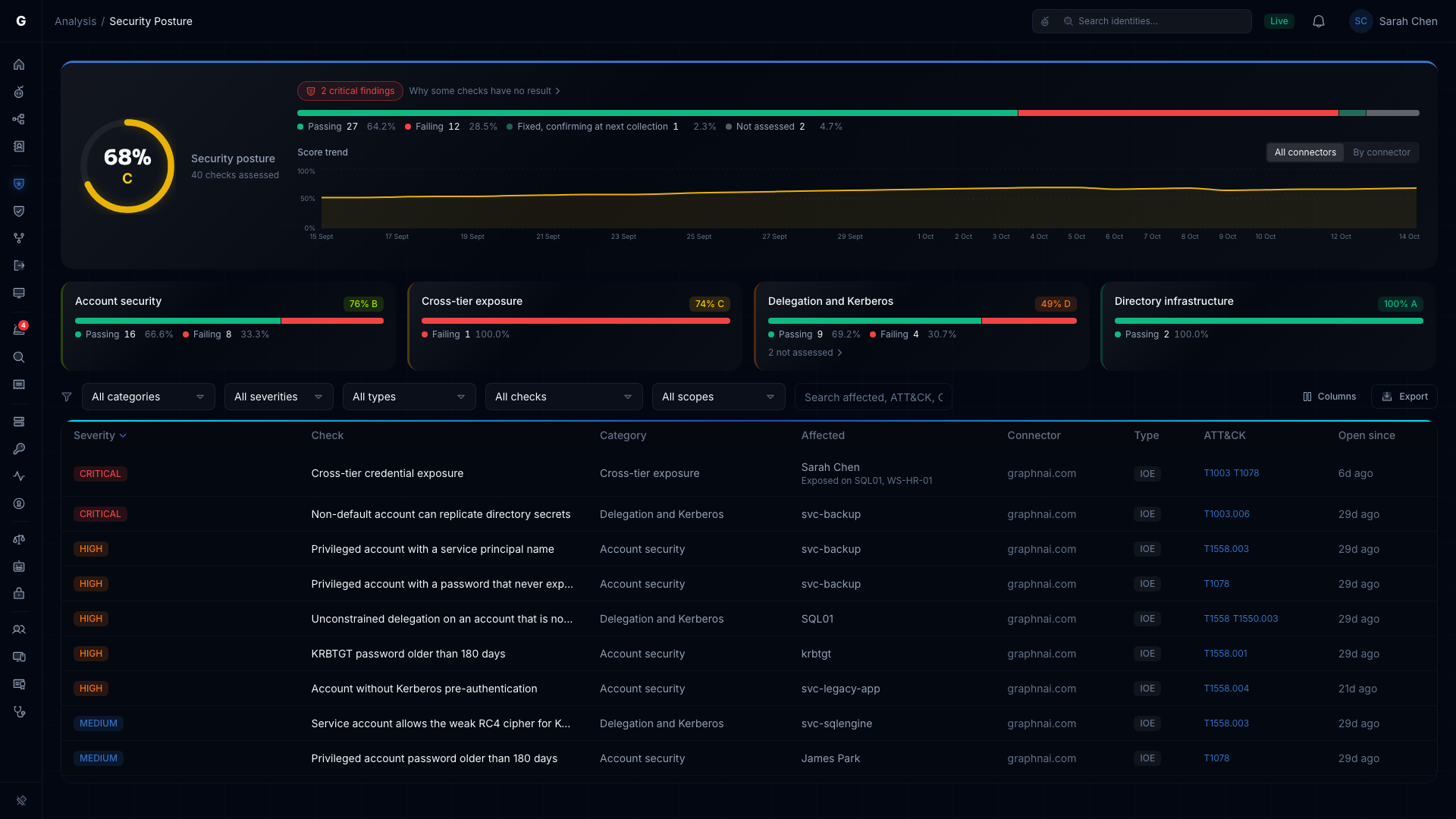
Select the Account security card to show only this category's findings. Select it again to clear it.
Narrow further with the filter bar: Severity, Type (IOE or IOC), Check, and Connector when you have more than one. The search box matches the affected identity, an ATT&CK ID or a CVE.
Select a row to open the finding's drawer. Under the affected identity, Failing check gives the title, severity, category, type and description. The evidence, Why this matters, How to fix it, Frameworks, Related CVE (where there is one) and Timeline follow.
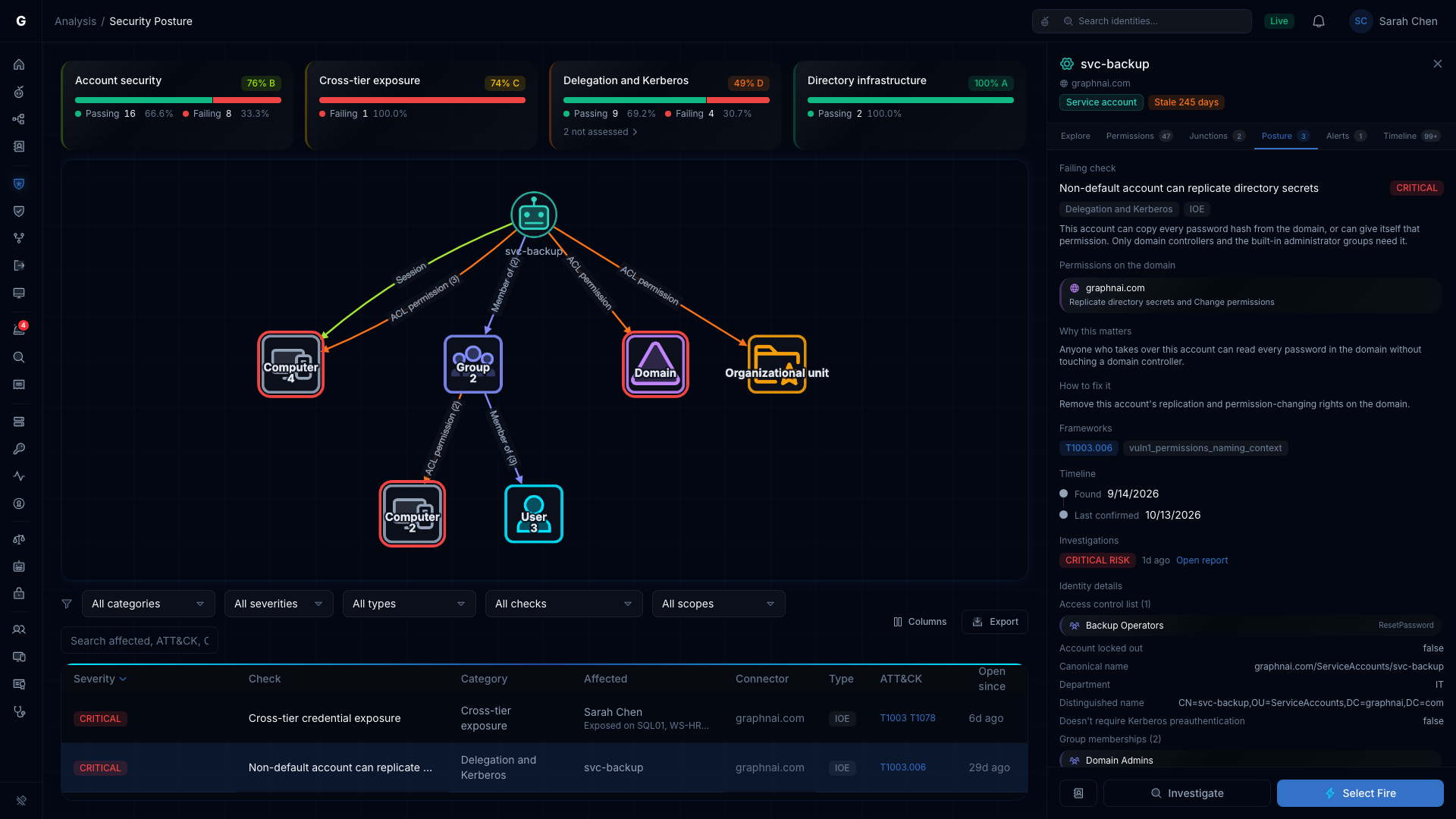
Where GraphnAI can make the fix, the drawer offers Select Fire: remove a member from an operator group, clear a stale adminCount flag, or remove a service principal name, for example. Select Fire always previews and simulates the change before you commit. See Select Fire. Checks without an automatic fix, such as KRBTGT, the smartcard check, the mailbox check and the built-in Administrator checks, show a note instead.
Select Investigate to start an investigation of the identity (Operators and Admins), or the address-book icon (Find in Identity Inventory) to find it in the Identity Inventory.
Select Export, then Export as CSV or Export as JSON, to download the filtered findings for a change ticket or an audit.
A fixed finding stays in the list until the next collection confirms the fix. Until then it's marked "Fixed, confirming at next collection".
Troubleshooting
A category reads "Not assessed" with no findings
Either the last sync hasn't finished, or your attribute-sync profile leaves out an attribute every check in the group needs. For example, userAccountControl gates every flag check. Select the "not assessed" line on the card to open Checks without a result: it names each check and the input it's missing.
Schema Admins reads "Doesn't apply" on some domains
That's expected. Schema Admins exists only in the forest root domain, so a child domain has nothing to check. It reads Not assessed only on the forest root, when the group can't be found. That one is worth a look: "Schema Admins wasn't found in the forest root domain. Check that the last sync collected it."
Almost every check reads "Doesn't apply" on an Entra ID tenant
That's expected. This catalogue is built on Active Directory attributes, and an Entra tenant has no equivalent for most of them. The three checks that read data Entra does collect still run. A tenant with checks that don't apply is healthy. A tenant with Not assessed checks is the one to look into.
There's no Foreign Security Principal check
That's expected for now. The check waits on Foreign Security Principal collection, and it appears in the catalogue once that ships.
Naming findings for accounts you know are legitimate look-alikes
The duplicate and disguise checks fire only when a hidden Unicode character causes the match. The same account name in two domains of one forest never fires them on its own. If you can confirm the flagged names carry no invisible character, report it.
A privileged-account check misses an account you know is Tier 0
Privileged scope comes from Tier 0 and protected-group membership, so a newly added member is in scope before AdminSDHolder catches up. If an account is still missing, confirm its group membership synced, and check its Asset Criticality tier.
The page says "Couldn't load Security Posture"
Select Retry. If it keeps failing, open Platform Health.