Support Access
Let GraphnAI Support run time-limited, read-only diagnostics on your deployment, and end that access at any moment.
Requires role: Admin (to enable or end support access). Everyone in your organization can see when it's active. Related: License Management & Feature Gating, Security Architecture
Overview
GraphnAI is self-hosted. Your deployment runs in your environment, and GraphnAI has no standing access to it. That's the default, and support access doesn't change it.
While working a support case, GraphnAI Support sometimes needs to see how your identity data is shaped to diagnose a problem. A support access key allows exactly that, for a limited time, on your terms:
- You turn it on. A key does nothing until an Admin in your organization applies it.
- It expires by itself. Every key carries an expiry, set when GraphnAI issued it.
- You can end it at once, at any point, without waiting for the expiry.
- It's read-only. Support can run diagnostic queries. It can't change your data, your settings or your users.
- Everyone can see it. While support access is active, every user in your organization sees a banner, whatever their role. Each person can hide it for themselves after reading it.
- Every query is recorded, with the support case it belongs to.
A support access key is issued for your deployment only. A key issued for another organization won't work on yours, and yours won't work anywhere else.
What support access allows
| Support can | Support can't |
|---|---|
| Run read-only diagnostic queries against your identity graph | Change, delete or add any data |
| Read the same collections GraphnAI's own analysis reads | Read your stored credentials, user accounts or identity provider settings |
| See the results of those queries during your support session | Sign in as a user, or act on your behalf |
| Extend their own access, or turn it back on after you end it |
Diagnostic queries have the same restrictions GraphnAI applies to its own internal queries. The collections that hold credentials, user records and identity provider settings can't be read this way at all, and no support access key changes that.
Enabling support access
GraphnAI Support sends you a support access key file as part of an open support case. GraphnAI can't fetch a key by itself, and GraphnAI can't turn one on remotely.
- Select Admin > License in the sidebar.
- Find the Support access card.
- Choose the support access key file, or drag it onto the card.
- Select Enable support access.
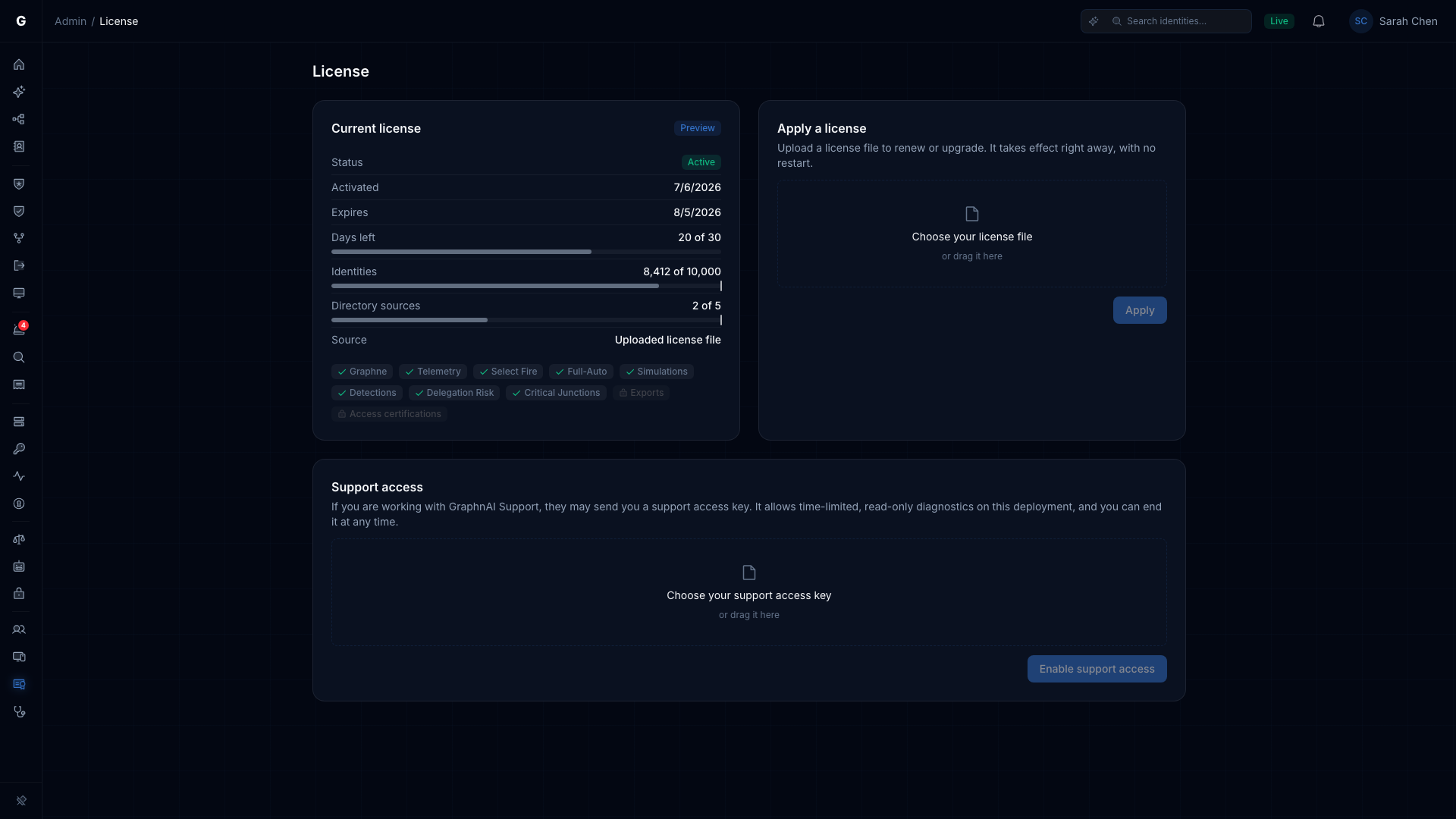
The card then shows an Active badge and three rows: Case, Ends (with the time left) and Enabled by (who applied the key, and when):
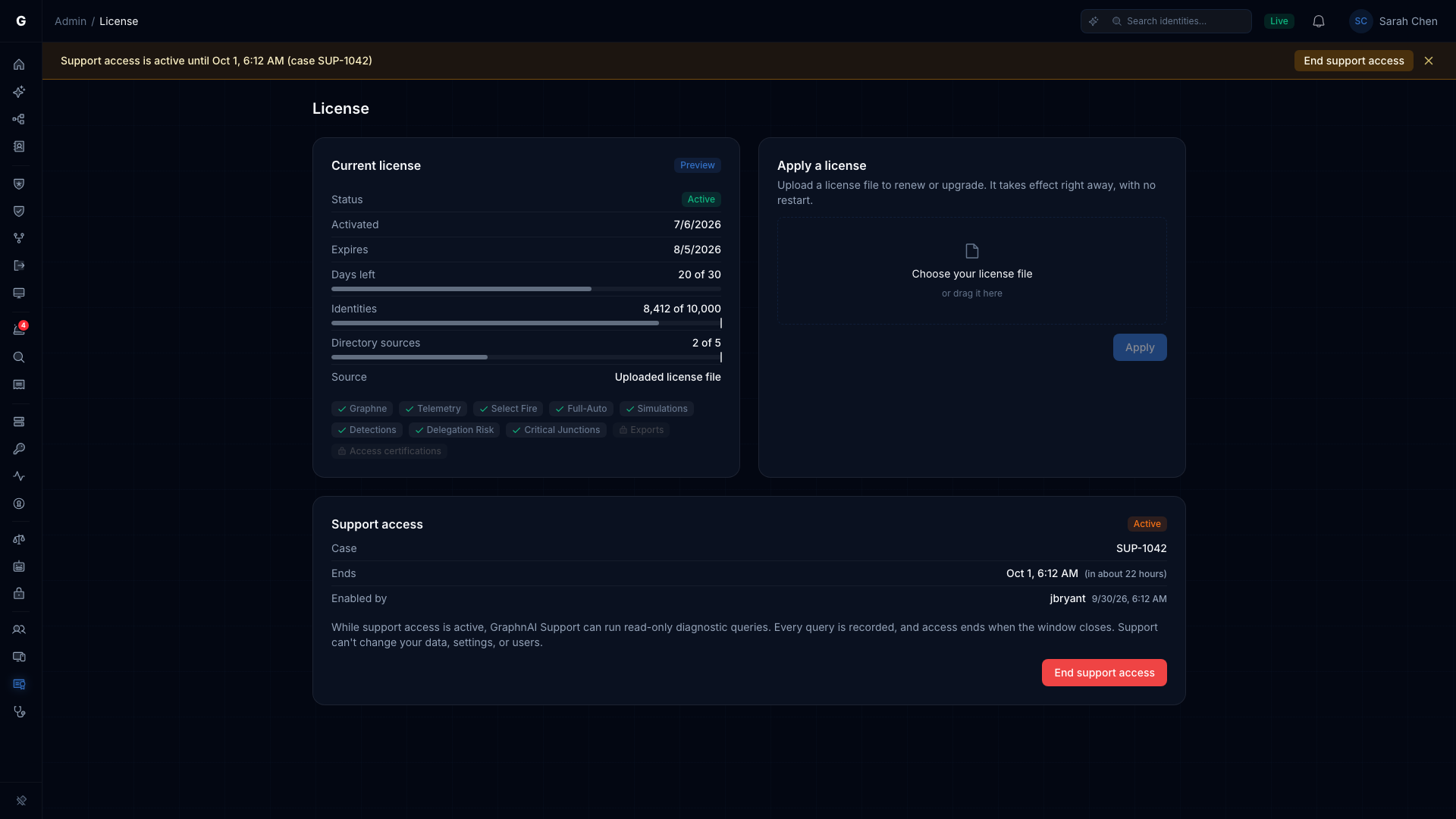
At the same time, a banner appears at the top of every page for every user in your organization:
Support access is active until Jul 22, 3:00 PM (case SUP-1042)
This is deliberate. Nobody in your organization should have to check a settings page to find out whether a vendor has access right now.
Hiding the banner
Anyone can hide the banner with the × at its right edge. Hiding it affects only you, and it doesn't end support access.
The banner stays hidden until you next sign in. If an Admin applies a support access key after you hid it, even the same key again, the banner comes back for everyone. You never hide a window you haven't seen.
Admins can check the current state at any time on the Support access card under Admin > License.
If the key is rejected
GraphnAI checks the key's signature, its expiry, and that it was issued for your deployment. If any check fails, nothing changes, and the card reads "That support access key isn't valid. Check that it was issued for this deployment and hasn't expired." The most common causes are a key that has already expired, or one issued for another deployment. In both cases, ask Support for a new one.
If you choose a support access key on the Apply a license card, GraphnAI tells you so: "That file is a support access key. Apply it under Support access on the License page." A license file chosen on the Support access card reads as a key that isn't valid.
Ending support access
You can end support access whenever you like: during a call, after the session, or right after you enabled it. You don't need to give a reason or tell Support first.
- Select End support access, on the banner or on the Support access card. If you hid the banner, use the card.
- Check the confirmation. It names the case, for example "End support access for case SUP-1042?", so you know which session you're ending.
- Select End support access.
Diagnostic access stops the moment you confirm. Support's next query is refused.
Only Admins see End support access. Support access also ends on its own when the key expires, with nothing for you to do.
After it ends
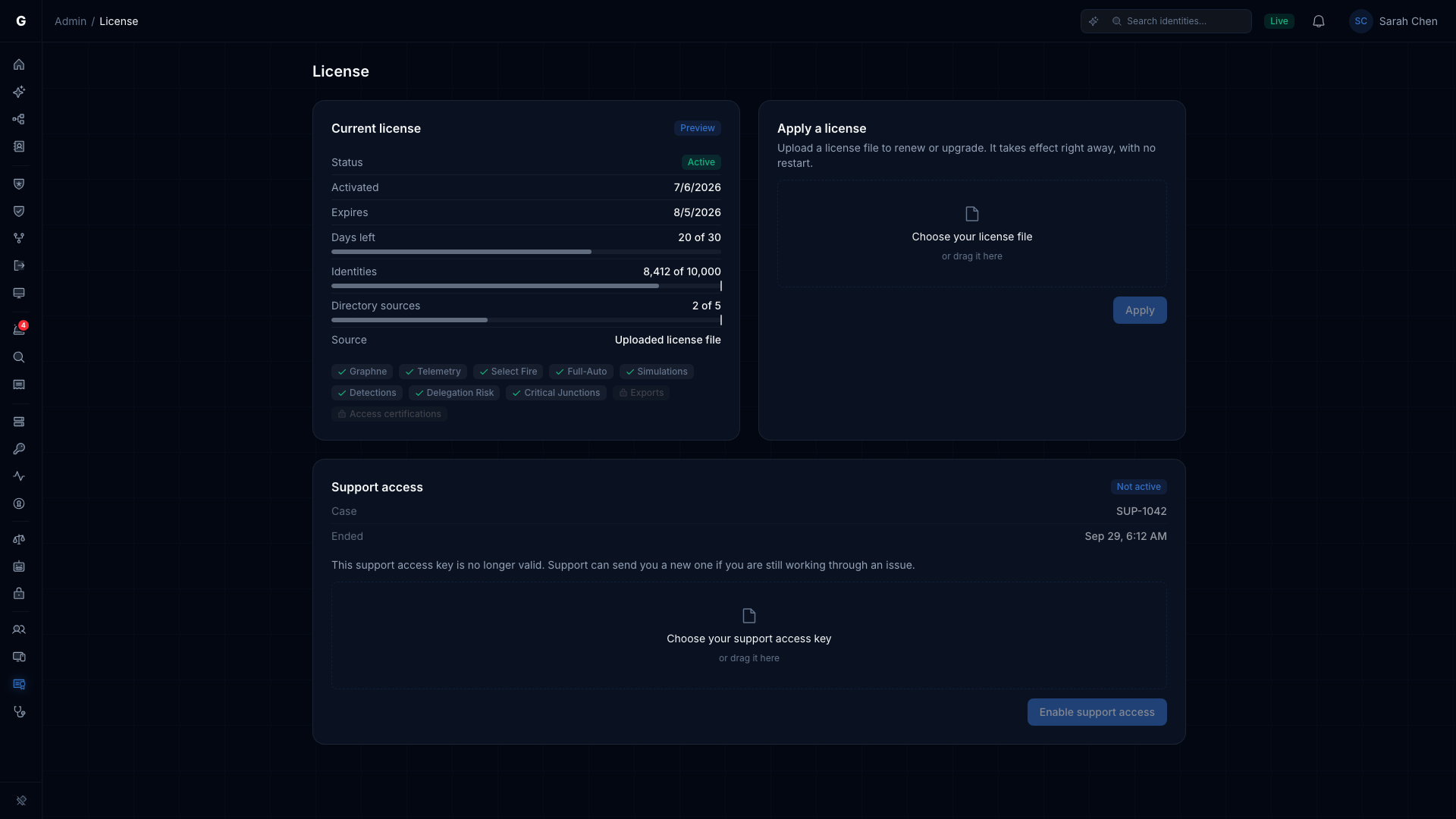
Once the window closes, the card shows Not active and says "This support access key is no longer valid. Support can send you a new one if you are still working through an issue." It's ready to accept a new key, so an old key is never mistaken for an active session:
Note: Ending support access stops it on your deployment. If a key you were sent hasn't expired yet, an Admin in your organization can apply that same key again. Applying a key turns support access on, so applying it again is a new, deliberate decision by you. If you'd rather that not be possible, ask Support to keep the issued window short.
Support access on an expired license
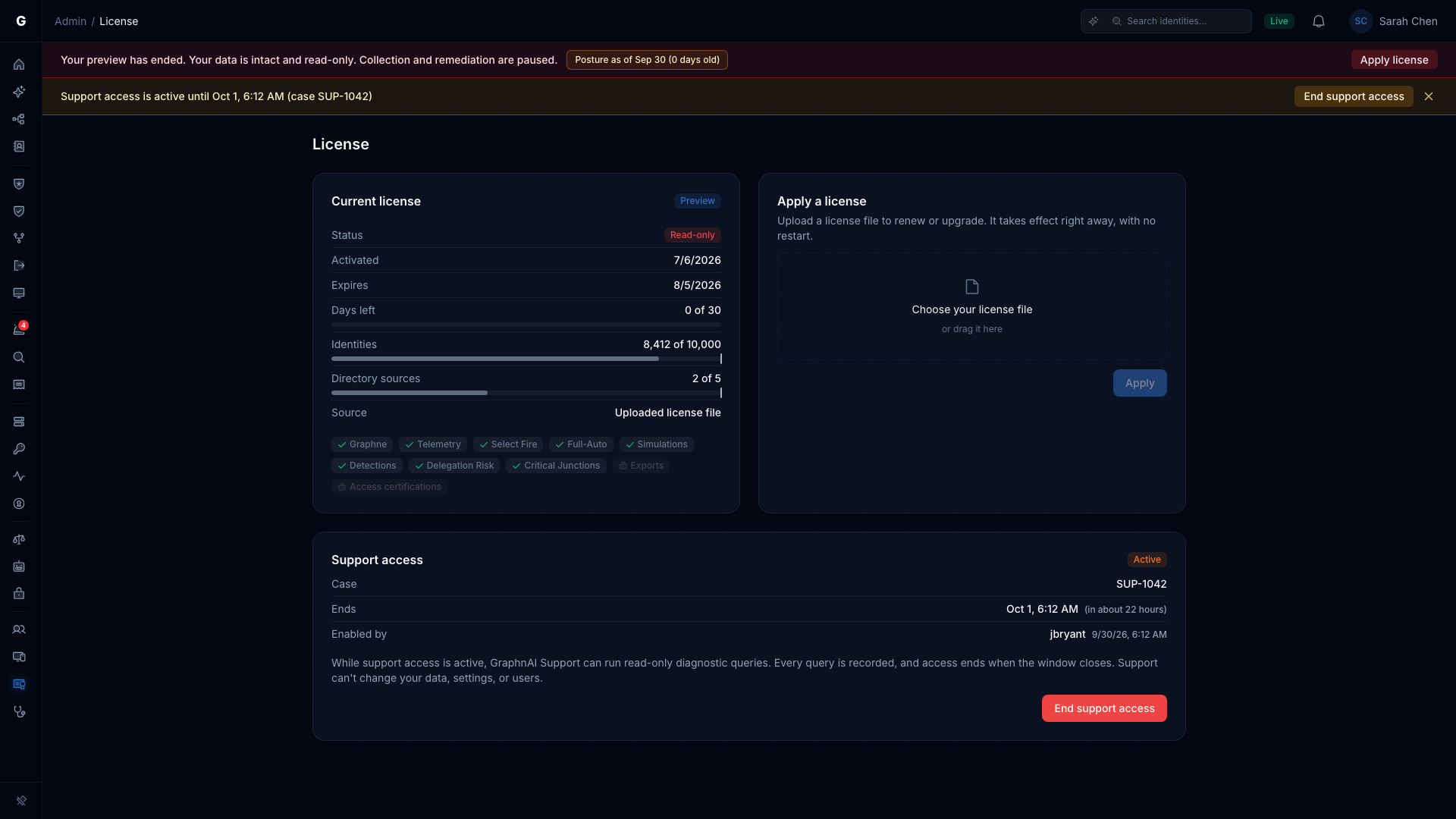
If your license has lapsed, your deployment goes read-only. Your data stays intact and browsable, but collection and remediation pause until you apply a new license.
Support access still works in that state, on purpose. Working out why a renewal won't apply is one of the most common reasons to need help. You can enable support access, work through the problem with Support, and apply the renewal, all while read-only.
When both are in effect, you see two banners: the license notice, and the support access notice under it.
What gets recorded
Every diagnostic query run under support access is recorded, with the query itself and the support case it belongs to. The record also shows who enabled the access and when it ended. Enabling and ending support access are recorded as separate events.
The support access key itself is never written to any log, record or page. GraphnAI verifies it, then refers to it only by its case and identifier.
Frequently asked
Can GraphnAI turn this on without an Admin in your organization? No. A key does nothing until an Admin in your organization applies it on your deployment. There's no remote switch, and GraphnAI never fetches a key by itself.
Does it survive a restart? Yes. If your server restarts during a session, support access resumes for the rest of its window. It still ends at its original expiry. A restart doesn't extend it.
Can a Viewer or Operator enable it? No. Only an Admin can enable or end support access. Everyone can see that it's active.
Does hiding the banner end support access? No. Hiding it removes the notice for you until you next sign in. Support access stays open until an Admin ends it or the key expires.
Can Support extend their own access? No. The window is fixed when the key is issued. A longer window needs a new key, which an Admin in your organization has to apply.
What happens if nobody applies a key? Nothing. Diagnostics stay off, which is how every deployment starts.