Semi-Auto Execution
Authorize each action in a Select Fire™ plan, run it against your directory through the Identity Bridge, and see the directory confirm it.
Requires role: Operator (authorize actions on Critical or High targets); Admin (authorize any action, and set up remediation credentials)
Related: Select Fire, Remediation Action Catalog, Identity Bridge, Detection Alerts, Over-Permission Analytics, Remediation Reversibility and Undo
Overview
Semi-Auto is the middle of Select Fire's three modes. Safe Mode gives you a script to run yourself. Semi-Auto makes the change in Active Directory or Entra ID for you, one action at a time, after you authorize it.
For each action in the plan, you choose Authorize or Skip, or you Abort the rest of the plan. Authorized actions run one at a time, in plan order. After each one, GraphnAI reads the object back from the directory. The row shows Verified only when that read shows the change took effect.
Full-Auto runs its changes through the same checks, ledger, and verification. Running changes in Semi-Auto first is how you build confidence in that path before any automation. See Full-Auto Execution.
These changes can run today:
- Active Directory: Removing a group membership, removing a permission entry (see AD Permission Revocation), removing a Group Policy link, and account-wide actions such as disabling or quarantining the account.
- Entra ID: Removing a directory role assignment, an app role assignment, or an OAuth permission grant.
- Security Posture fixes: The steps a check's fix declares, such as removing a service principal name.
Anything else shows Simulate only, with the reason, and has no Authorize button. The Remediation Action Catalog lists every action.
Prerequisites
1. Remediation credentials saved per domain
Changes run with a separate write account for Active Directory and a separate app registration for Entra ID. Neither is the account or app GraphnAI syncs with. An Admin sets them up before anything can run.
To set up remediation credentials:
- Select Admin > Remediation Credentials in the sidebar.
- Choose the domain in Domain.
- Under Active Directory, turn on Use these credentials.
- Enter the Service account, for example
[email protected], and its Password. - Leave Require TLS (LDAPS) on. Password resets need it.
- Select Save credentials.
- Select Validate.
Use a dedicated account that can change the objects you plan to remediate. Don't use the sync account or a Domain Admin account.
Validate checks the saved credentials without changing anything. It's disabled until you save, and the line under the buttons reminds you. The results show:
- Active Directory: Signed in, and Write account confirmed once the directory reports the account back.
- Entra ID: Got an access token, each required permission with a pass or fail, and whether the write app is separate from the apps GraphnAI signs in and syncs with.
"All checks passed." means you can run changes. "Some checks failed. Remediation won't work until they pass." lists what to fix.
Setting up the Entra ID write app
GraphnAI won't make changes with the app it signs in or syncs with, so Entra ID changes need a dedicated app. The same steps are under How to set up the Entra write app on the page.
- In the Microsoft Entra admin center, open App registrations > New registration, and create a dedicated app (for example, "GraphnAI Remediation").
- Under Certificates & secrets, create a client secret and copy its value.
- Under API permissions, add these Microsoft Graph Application permissions:
User.ReadWrite.AllRoleManagement.ReadWrite.DirectoryAppRoleAssignment.ReadWrite.AllDelegatedPermissionGrant.ReadWrite.All
- Select Grant admin consent for the tenant.
- Under Entra ID on Admin > Remediation Credentials, turn on Use these credentials.
- Enter the Tenant ID, the app's Client ID, and the Client secret.
- Select Save credentials, then Validate.
The validation lists each permission, so you can see which consent is still missing.
2. Bridge connected
The Identity Bridge for the domain must be running and connected. Check its status on Admin > Bridges.
If the bridge is offline when you authorize an action, the action waits for it. See Queue on Disconnect.
3. Role
| Action | Required role |
|---|---|
| Authorize an action on a Critical or High target | Operator or Admin |
| Authorize any other action | Admin |
| Set up remediation credentials | Admin |
| Open the Remediation page | Operator or Admin |
An Operator can authorize an action only when its target is Critical or High. For any other action, Authorize is disabled with the tooltip "Only an Admin can run this. The target is below High criticality."
The Execution Flow
Semi-Auto runs inside the Select Fire flow. Preview and Simulate work as usual, and Semi-Auto is chosen in the Decision step.
Step 1: Preview (select targets)
Open Select Fire from a finding, from the Graph Explorer, or from Graphne. In Preview, choose the access to remove. From a finding, the recommended sources start selected. See Select Fire.
Step 2: Simulate (review the blast radius)
Simulate shows what the change removes and its Operational Safety Metric™ grade. Review what's lost and the recommended mode, then select Continue.
A simulation lasts 60 minutes by default. If it expires, select Back to Preview and simulate again. Your selections are kept.
Step 3: Decision (select Semi-Auto)
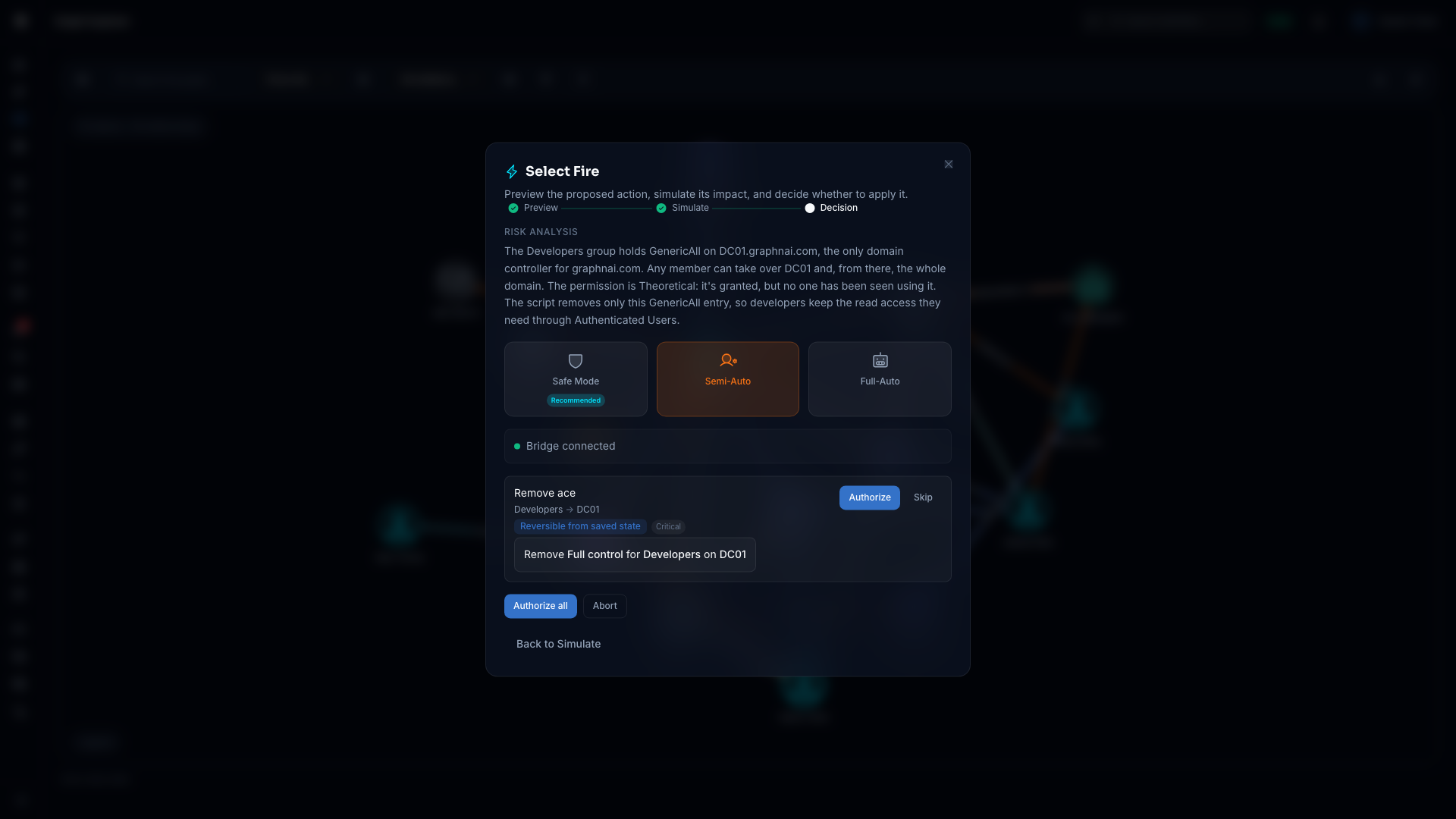
In Decision, select the Semi-Auto card. "Compiling the action plan…" shows while the plan is built. The execution panel then replaces the script.
The Semi-Auto Execution Panel
The panel has three parts: the bridge check, the action rows, and the buttons at the bottom.
Pre-execution checks
While anything is left to run, a line at the top shows the bridge:
| Message | What it means |
|---|---|
| Bridge connected (green dot) | The bridge is online and ready. |
| Bridge disconnected. Authorized actions wait up to 24 hours for it, then expire. (red dot) | Actions you authorize wait for the bridge. See Queue on Disconnect. |
| Couldn't check the bridge connection. (orange dot) | The check itself failed. You can still authorize. An action waits if the bridge turns out to be offline. |
| No bridge serves this domain. Add one in Bridges. (red dot) | Nothing can run until a bridge serves the domain. Authorize is disabled. |
Protected objects are flagged on their own rows. See Action rows.
Action rows
Each action in the plan has its own row. A row shows:
- The action and its objects: The change, such as "Remove group membership", then the subject and the target. When the action removes one permission, that permission is named.
- Reversibility badge: See Reversibility Badges.
- Target criticality: For example, Critical or High.
- Safety badge, when the object is on the safety list:
- Needs confirmation: A person can run it after typing the object's name. Select Review and confirm. See Confirming a Change to a Protected Object.
- Blocked: It can't be run, even by a person. The reason is on the row.
- Couldn't check or On hold: The check didn't finish, so the action waits. The reason says what to do.
- Current state: The values the change will modify, as the plan read them.
- The reason, for a row that can't run. For example, "Simulation only: this kind of permission can't be removed from here."
A permission-entry removal also shows what it takes away and what stays. A Group Policy link removal reminds you that settings the policy already applied stay on the computers until something changes them.
Each row that can run has two buttons:
- Authorize: Queues the action. It reads Authorized while it waits its turn.
- Skip: Leaves the action out. A skipped action doesn't run and isn't recorded in the remediation history.
A running row shows "Running…".
Result badges
When an action finishes, its buttons give way to a status badge:
| Badge | Meaning |
|---|---|
| Verified | The change was made, and reading the directory back confirmed it. |
| Not verified yet | The bridge made the change, but the read-back didn't answer in time. GraphnAI keeps checking in the background. |
| Failed | The change didn't complete. The row says why. |
| Refused | A safety check stopped it, for example because the object is protected. The row says why. |
| Waiting for bridge | The bridge was offline. The action is recorded and runs when the bridge reconnects. |
| Read-only bridge | The bridge is in read-only mode, so nothing was written. See Read-Only Bridge Mode. |
| Escalated for review | A person needs to look at it. |
| Skipped | You selected Skip. |
| Aborted | You selected Abort before this action ran. |
Below the badge, the row shows the attributes before and after the change, when the directory returned both. For a group membership, for example, memberOf before lists "Domain Admins" and after doesn't.
Footer controls
Two buttons sit at the bottom of the panel:
- Authorize all: Authorizes every action that can run. They still run one at a time, in plan order. It's disabled when nothing is left to authorize, after an abort, or when no bridge serves the domain.
- Abort: Stops the plan. An action already running finishes and records its result. Every action not yet started is marked Aborted. You can't resume an aborted plan.
Plan expiry
An Operator's authorization to run a plan lasts 30 minutes after it's built. When it lapses, a banner reads "This plan expired. Recompile it to authorize its actions." Select Recompile plan to build a fresh one. Admins don't see this banner.
Reversibility Badges
Every action carries a badge that says whether it can be undone.
| Badge | Meaning |
|---|---|
| Reversible | Undo restores the previous state exactly. Re-adding a user to a group is an example. |
| Reversible from saved state | Undo restores from a saved copy of the original state, taken before the change. |
| Partly reversible | Undo restores the main change, but some detail can't be brought back. Hover over the badge for what. |
| Not reversible | The change can't be undone, such as revoking sign-in sessions. Authorize is disabled, with the tooltip "A change that can't be undone isn't run from here." |
| Simulate only | Nothing here can run yet. There's no Authorize button, and the reason is on the row. |
See Remediation Reversibility and Undo for how each class is decided.
Queue on Disconnect
If the bridge is offline when you authorize an action, the action is recorded as waiting and runs when the bridge next connects.
- The bridge check reads "Bridge disconnected. Authorized actions wait up to 24 hours for it, then expire."
- The row shows Waiting for bridge.
- A waiting action expires after 24 hours. It's then refused with "The bridge stayed offline for 24 hours, so the waiting change expired."
- Waiting actions appear on Detection & Response > Remediation. See Remediation History tab.
- When the bridge reconnects, waiting actions run in the order you authorized them. Each ends as Verified, Failed, or another result.
Read-Only Bridge Mode
A bridge can run in read-only mode, where it collects directory data and writes nothing. It's a setting on the bridge host. An action you authorize against a read-only bridge is never applied. Its result is Read-only bridge.
To run changes, whoever manages the bridge host removes the setting and restarts the bridge.
Remediation History tab
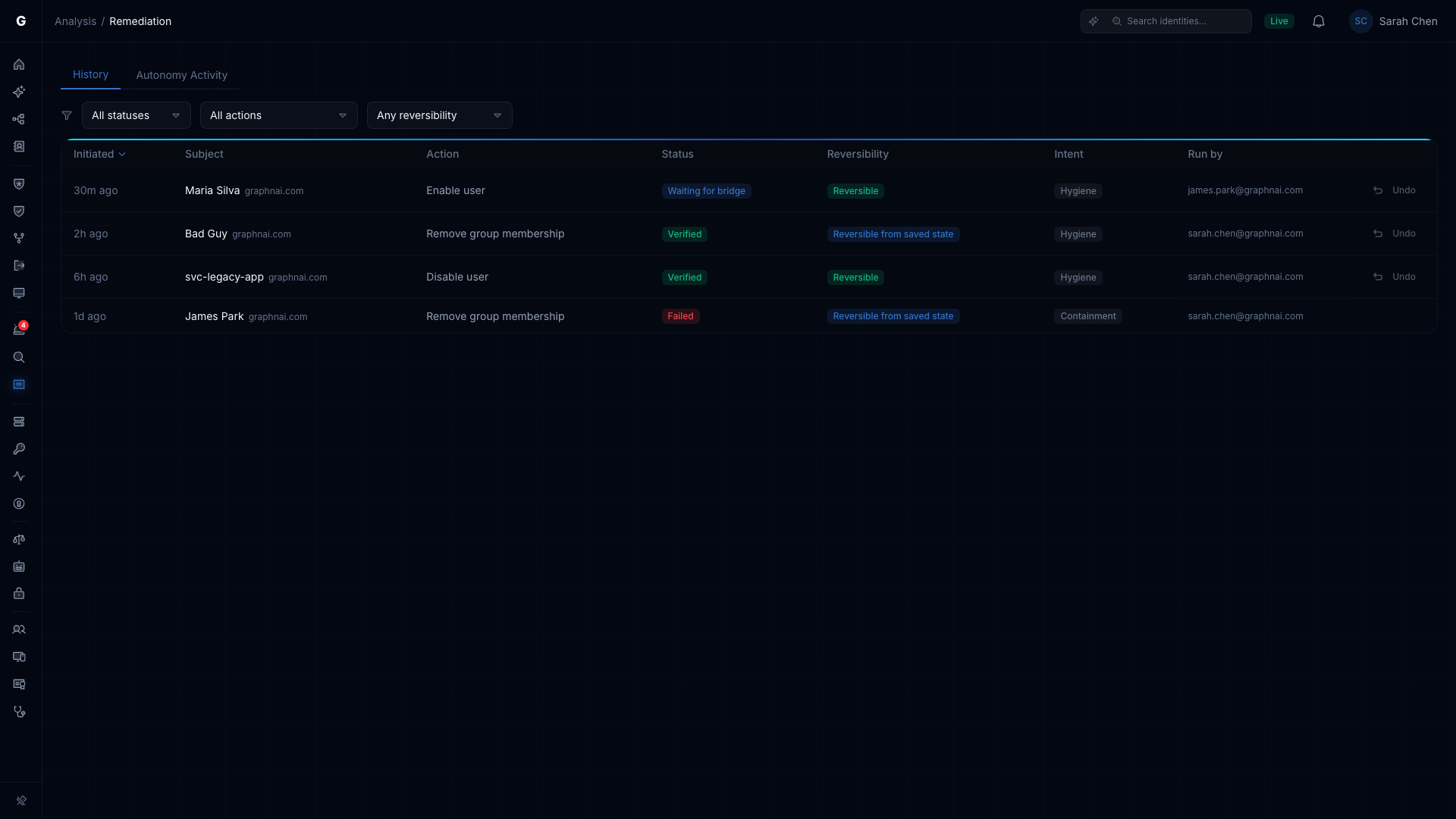
Every action that reaches the execution path is recorded in the remediation ledger, whatever its result. The History tab is its audit trail.
Accessing the page
Select Detection & Response > Remediation in the sidebar. The History tab opens.
Filters
Three filters sit above the table:
| Filter | Options |
|---|---|
| Status | All statuses, or one of: Running, Waiting for bridge, Not verified yet, Verified, Reverted, Escalated for review, Refused, Failed, Read-only bridge |
| Action | All actions, or one action, such as Disable user or Remove group membership |
| Reversibility | Any reversibility, Reversible, Reversible from saved state, or Not reversible |
The filters are part of the page address. Share the link, and a colleague sees the same filtered view.
Table columns
| Column | Description |
|---|---|
| Initiated | How long ago the action started |
| Subject | The object that was changed, and its domain |
| Action | What was done, such as "Remove group membership" or "Disable user" |
| Status | The result badge |
| Reversibility | The reversibility badge |
| Intent | Containment (stopping a threat) or Hygiene (cleanup) |
| Run by | The person who authorized it, or the automation that ran it |
| (Undo) | The Undo button. See below. |
Select a column header to sort. The newest actions come first. History entries are kept for 2 years.
Undo action
An Undo button sits at the end of each row for a verified change that can be undone. Select it to open Undo this action?, which shows the action, the subject, its reversibility, and what undo does. For a change undo can only partly restore, the dialog warns you first. Select Undo action to confirm.
The row moves to Reverting, then to Reverted once the directory confirms it. When the original change needed a typed confirmation, undo asks for one too.
When undo isn't available, the button is disabled and its tooltip says why. For example, "This change can't be undone." or "This action has already been reverted."
See Remediation Reversibility and Undo for how undo works.
Receipt flyout
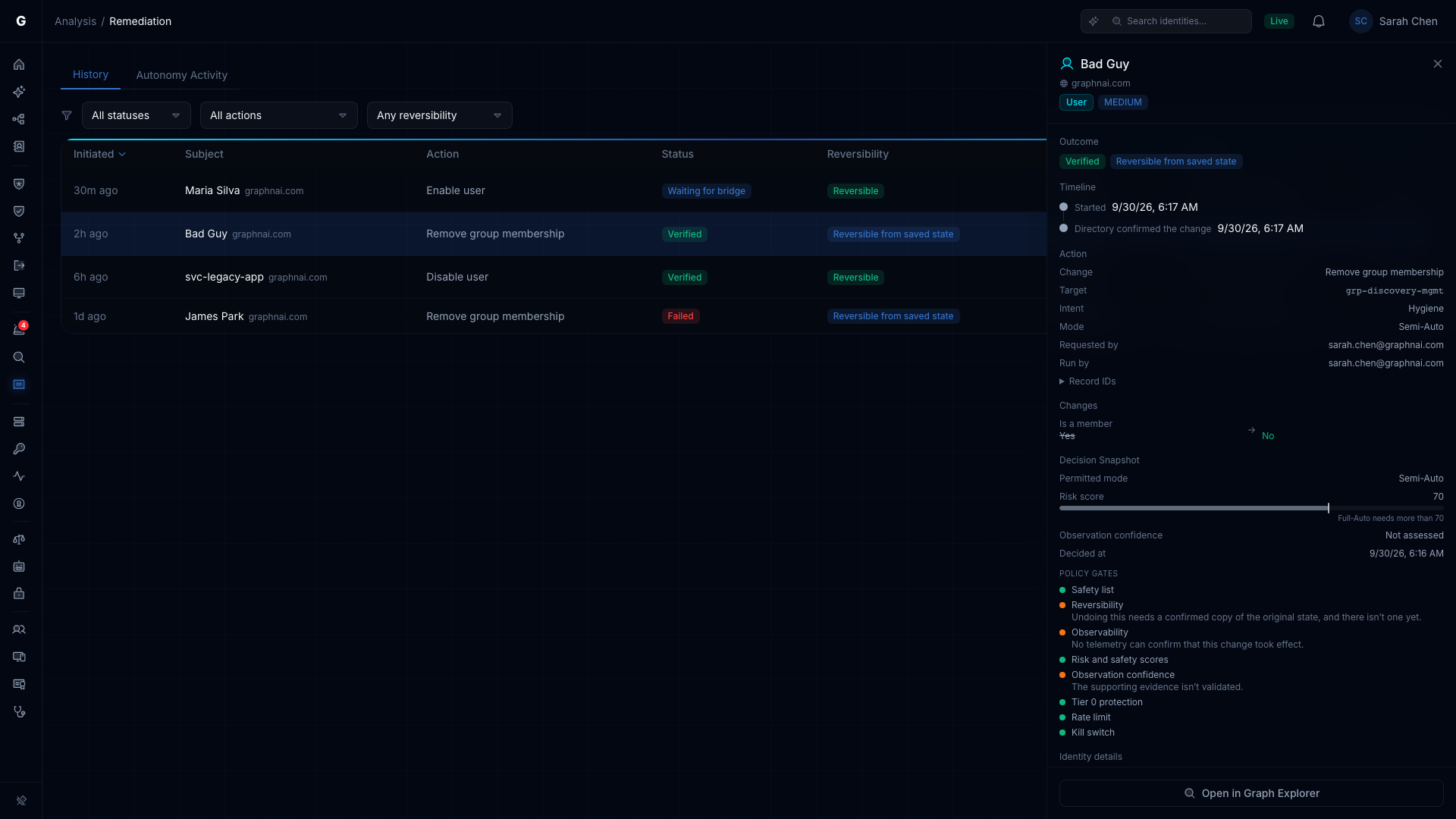
Select a row to open its receipt on the right. The receipt shows:
- Outcome: The status and reversibility badges, what the directory read-back found, and any error.
- Timeline: When the action started, waited, ran from the queue, and was confirmed by the directory. Later events appear here too, such as "Changed back in the directory".
- Closed-Loop Rollback: For an Admin, the rollback watch on an automatic action. See Closed-Loop Rollback.
- Action: The change, the target, the intent (Containment or Hygiene), the mode, who requested it, and who ran it. Queued by appears when the action waited for the bridge. Attempt appears when the same change was tried again. Record IDs holds the ledger entry for audit exports.
- Changes: The attributes before and after the change.
- Steps: For a multi-step action, such as quarantining an account in both Active Directory and Entra ID, each step and its result.
- Decision Snapshot: What the plan was decided on, such as the permitted mode, the risk score, and the Operational Safety Metric.
Deep links
The page address changes when you open a receipt. Copy it to share that entry, or add it to an incident report. If the entry no longer exists, a banner reads "This entry no longer exists. Entries are kept for 2 years." Select Dismiss to clear it.
Drift Detection
After a change is verified, GraphnAI watches for it being undone outside GraphnAI, for example when another admin re-adds a group membership.
For 14 days after verification, each sync checks the changed object. If the directory shows the original state again, Operators and Admins get a Change undone outside GraphnAI notification. It arrives once per change, not on every sync.
To investigate, open the action's receipt on the History tab. The timeline shows "Changed back in the directory" with the time. Then check who or what changed it outside GraphnAI.
Troubleshooting
Actions show "Simulate only" and no Authorize button
The plan found no change it can run for that target, and the row says why. Common reasons: the relationship type has no write-back, the target no longer exists, or the domain has no remediation credentials. If the reason says to recompile, go back and select Semi-Auto again to build a fresh plan.
"Authorize" is disabled on a row
Check the row and the bridge line:
- The row shows Not reversible. Changes that can't be undone don't run from here. Skip it.
- The row shows Blocked. The object is on the safety list, and no confirmation unlocks it.
- The row shows Needs confirmation. Select Review and confirm, and type the object's name.
- The plan expired. Select Recompile plan.
- You're an Operator, and the target is below High criticality. Ask an Admin to run it.
- No bridge serves the domain. Add one on Admin > Bridges.
The action shows "Refused"
The row says why. "This object is on the protected list, so the change was refused." means the object is on the safety list, such as a built-in administrator or one of GraphnAI's own accounts. See Safety Rails for what a confirmation can unlock and what it can't.
The action shows "Not verified yet"
The bridge made the change, but the read-back didn't finish in time, for example because the directory was slow or limited the request. GraphnAI keeps checking. Look again on the History tab in a few minutes. The entry changes to Verified once the read-back confirms it.
Not verified yet isn't a failure. The change was made. Only its confirmation is pending.
Queue expiry: "The bridge stayed offline for 24 hours"
The bridge was offline for more than 24 hours after you authorized the action, so nothing was applied. Open Select Fire from the finding again, and authorize a fresh plan.
Validation says GraphnAI already signs in or syncs with this app
The Entra ID app you entered is the one GraphnAI signs in or syncs with, and GraphnAI won't make changes with it. Register a separate app, as described in Setting up the Entra ID write app.
A "Change undone outside GraphnAI" notification arrived
A sync found the directory back in its original state after a verified change. Open the action's receipt on the History tab to see when. Check your directory change logs, or ask the team that owns the object, then apply the fix again if it's still needed.
"This plan expired" appears mid-run
The plan's 30-minute authorization lapsed. Select Recompile plan to build a fresh one. Actions that already finished are in the history, and you don't need to authorize them again.