Investigations
Start an AI-assisted investigation of one identity and read a report of its access, peers, sign-ins, findings and recommended actions.
Requires role: Operator (start and read reports), Admin (set up the AI provider and turn AI automation back on)
Related: AI Safety Controls, Detection Alerts, Multi-Provider AI Configuration, Multi-Agent Intelligence, Select Fire, Identity Investigation Timeline
Overview
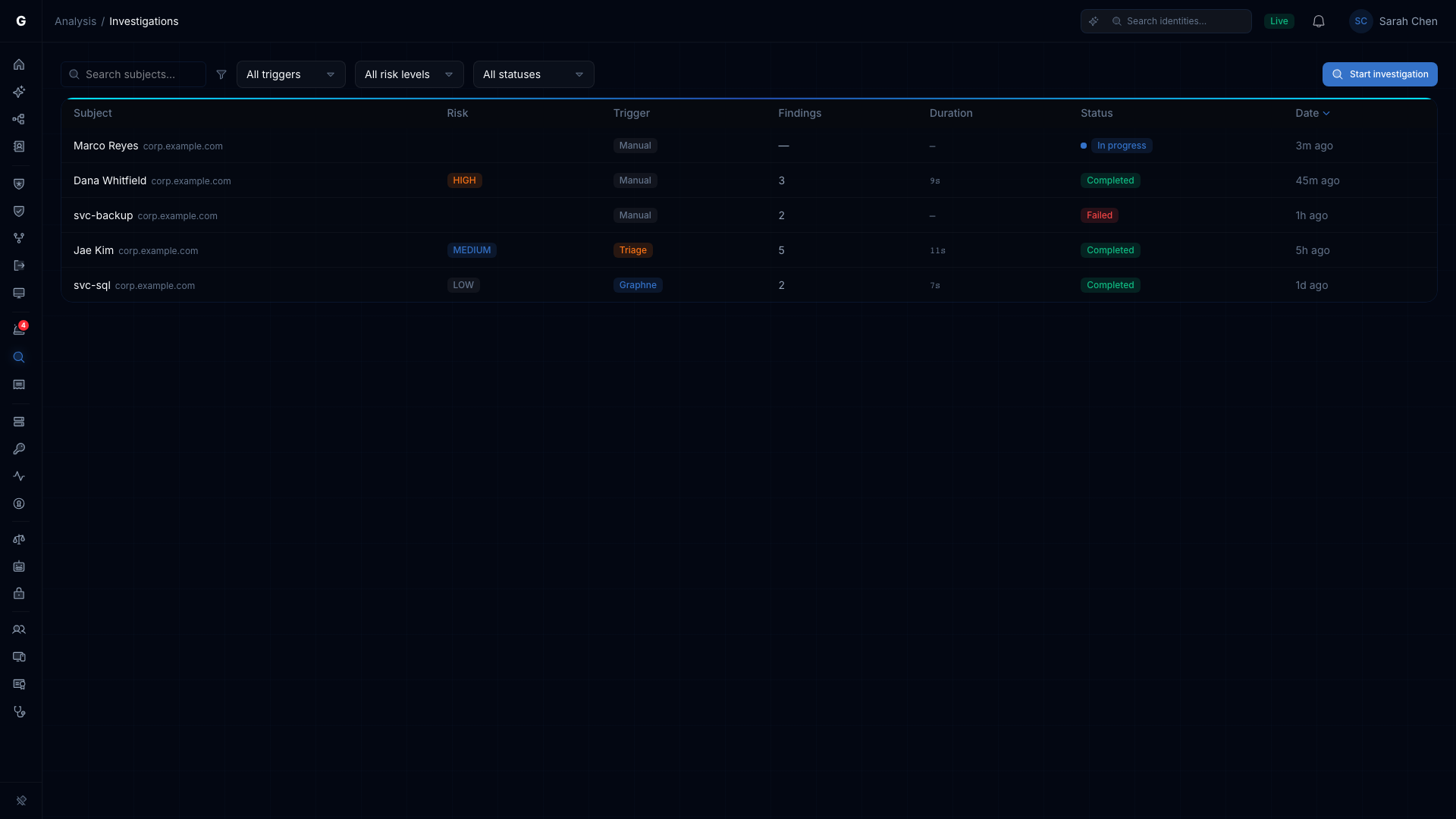
An investigation examines one identity and writes a report on it. The report shows what the identity can reach, how it compares with its peers, what it has been doing, and what to do about it. Each report is kept for a year, so you can compare runs over time.
An investigation runs five steps in order:
| Step | What it finds |
|---|---|
| Scope | The identity's criticality, whether it's Tier 0 or a junction, how many groups it belongs to, its risk score, and up to 100 direct permissions |
| Baseline | How its permission count compares with its peers, and its usual sign-in hours |
| Analyze | Four checks that produce findings: access anomaly, attack technique, sign-in activity and similar findings |
| Summarize | A short summary and key points |
| Recommend | Actions to take, each with an Operational Safety Metric™ score |
An investigation makes one AI call, to write the summary. If the AI provider doesn't answer, the summary is written without AI. The report says so with a "Summary written without AI" badge and lists the findings instead.
Three things can start an investigation: you, Graphne, and a triage policy. The report's Trigger column tells you which.
Prerequisites
- Role: Operator or Admin to start an investigation and to open the Investigations page. Viewers can't. See Who can use investigations.
- License: A license that includes the AI features. Without it, Investigations in the sidebar and the page itself show the license lock.
- AI provider: An Admin sets one up on Admin > AI Provider before the server starts. See Multi-Provider AI Configuration.
- AI automation on: If an Admin has turned AI automation off, investigations can't start.
- Identity graph populated: At least one full sync must have finished so there are identities to investigate.
Who can use investigations
| Action | Viewer | Operator | Admin |
|---|---|---|---|
| Open the Investigations page and read reports | No | Yes | Yes |
| Start an investigation or run one again | No | Yes | Yes |
| Set up the AI provider, turn AI automation back on | No | No | Yes |
A Viewer doesn't see Investigations in the sidebar, the Start buttons, or the flyout section, because the server lets only Operators and Admins read investigations.
On a read-only license, Start investigation and Run again are disabled, with a tooltip that explains the lock.
Start an investigation
You can only investigate users, computers, service accounts, groups and service principals. Other identity types, such as OUs and containers, are refused.
From the Investigations page
- Select Detection & Response > Investigations in the sidebar.
- Select Start investigation.
- In the Start an investigation dialog, search for an identity. The picker lists only the types you can investigate.
- Choose the identity and select Start.
The report opens straight away and fills in as the run progresses.
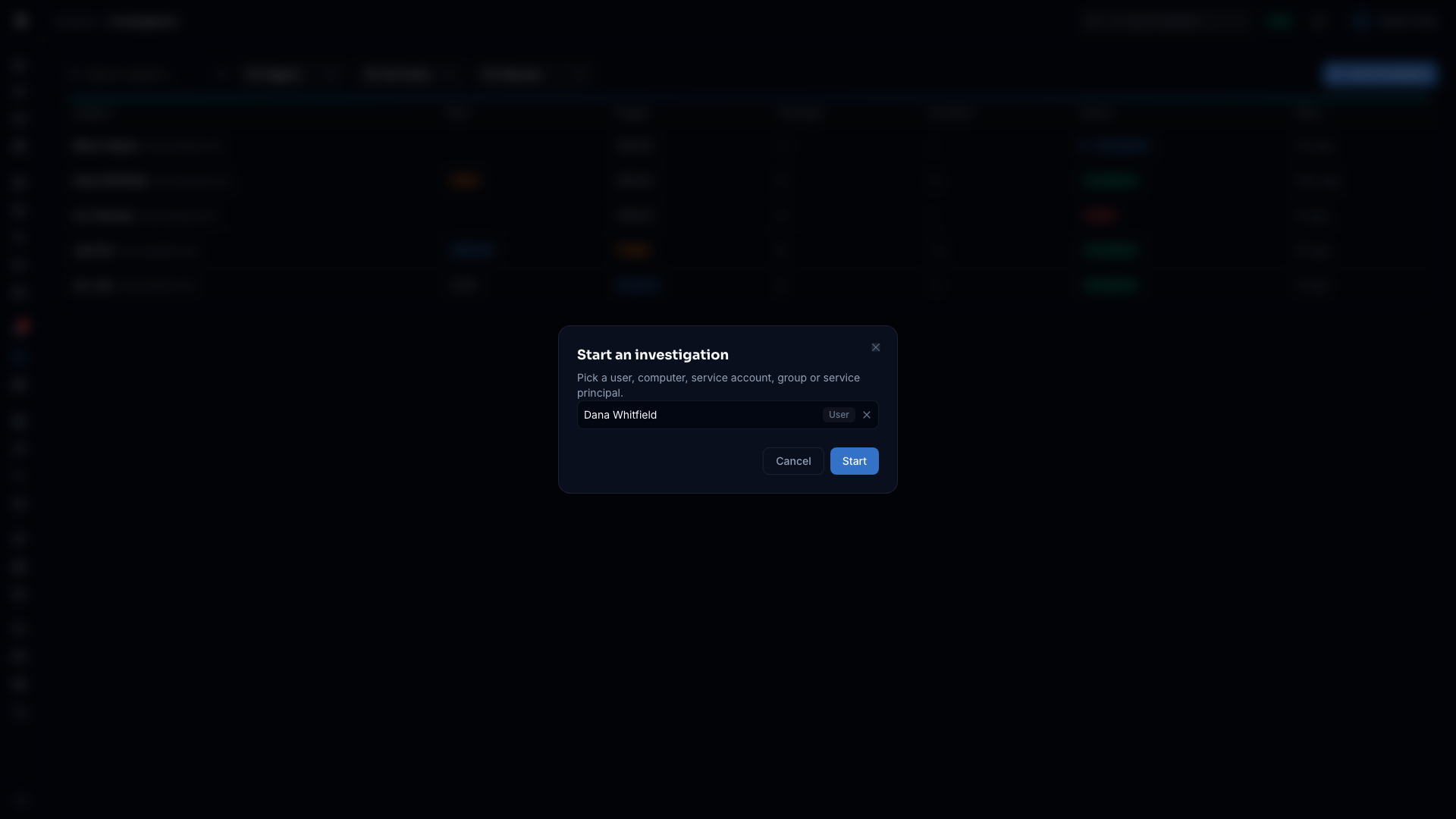
If the server refuses the start, the reason appears in the dialog under the picker. Change your choice or cancel.
From the identity flyout
- Open an identity in the flyout, from any page that shows it.
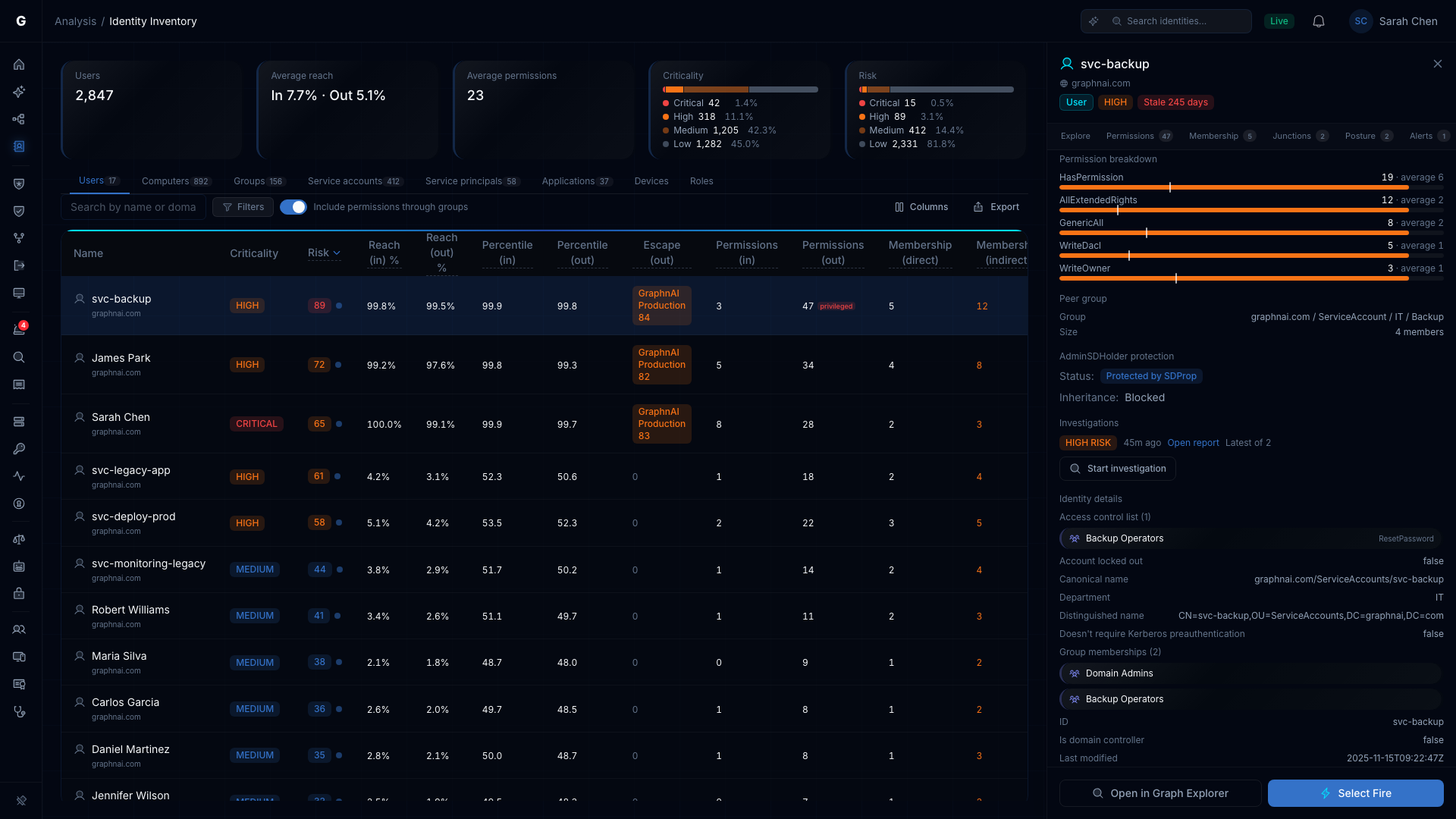
- Select Investigate at the bottom of the flyout, next to Select Fire.
This starts at once and opens the new report. There is no confirmation step, because an investigation only reads data and makes one AI call.
The flyout's Investigations section shows the identity's latest report: its risk level, or its status while it runs, and how long ago it started. Select Open report to read it. When the identity has more than one report, the section adds "Latest of N". An identity with no reports shows "Not investigated yet."
While a run is going, Investigate is disabled with the tooltip "An investigation of this identity is running." If the server refuses a start, a notification gives the reason.
In a table's Actions column, the magnifying glass starts an investigation of that row's identity the same way.
From a finished report
Select Run again at the top of a completed or failed report. It starts a new investigation of the same identity and opens it. The old report stays in the list. Run again doesn't appear while the report is running.
If the server refuses a run, a "Couldn't start the investigation" message appears with the reason.
Other ways a report appears
- Graphne: Ask Graphne to investigate an identity. The report shows "Started from Graphne".
- Triage policy: A triage policy can start an investigation when an alert fires. The report shows "Started by triage".
- Manual: Reports you start show "Started manually".
Filter the list by Trigger to see one kind.
Read a report
The Investigations list
The list shows one row per report. Select a row to open it.
| Column | Description |
|---|---|
| Subject | The identity and its domain |
| Risk | The overall risk level, from Critical to Low |
| Trigger | Manual, Triage or Graphne |
| Findings | How many findings the report holds. Shows a dash until the checks have run: while the run is going, or when it stopped before them. |
| Duration | How long the run took. Shows a dash while it runs, and for a run that stopped before it finished. |
| Status | In progress, Completed, Failed or Stopped |
| Date | When the run started |
Use Search subjects… to match identity names and summaries. The filters narrow the list by trigger, risk level and status, including Stopped. Select a column header to sort.
While any report is running, the list refreshes every 10 seconds.
Stop an investigation
Select Stop next to an In progress report, on the list or on the report page, then confirm Stop. Only the person who started the investigation and Admins see the button.
The report keeps the findings gathered so far and shows the status Stopped. A line on the report says who stopped it and when. If AI was turned off or automation was stopped, it says that instead. An investigation that Graphne started for you keeps running when you stop Graphne's chat answer. Stop it here.
See AI Safety Controls.
A running report
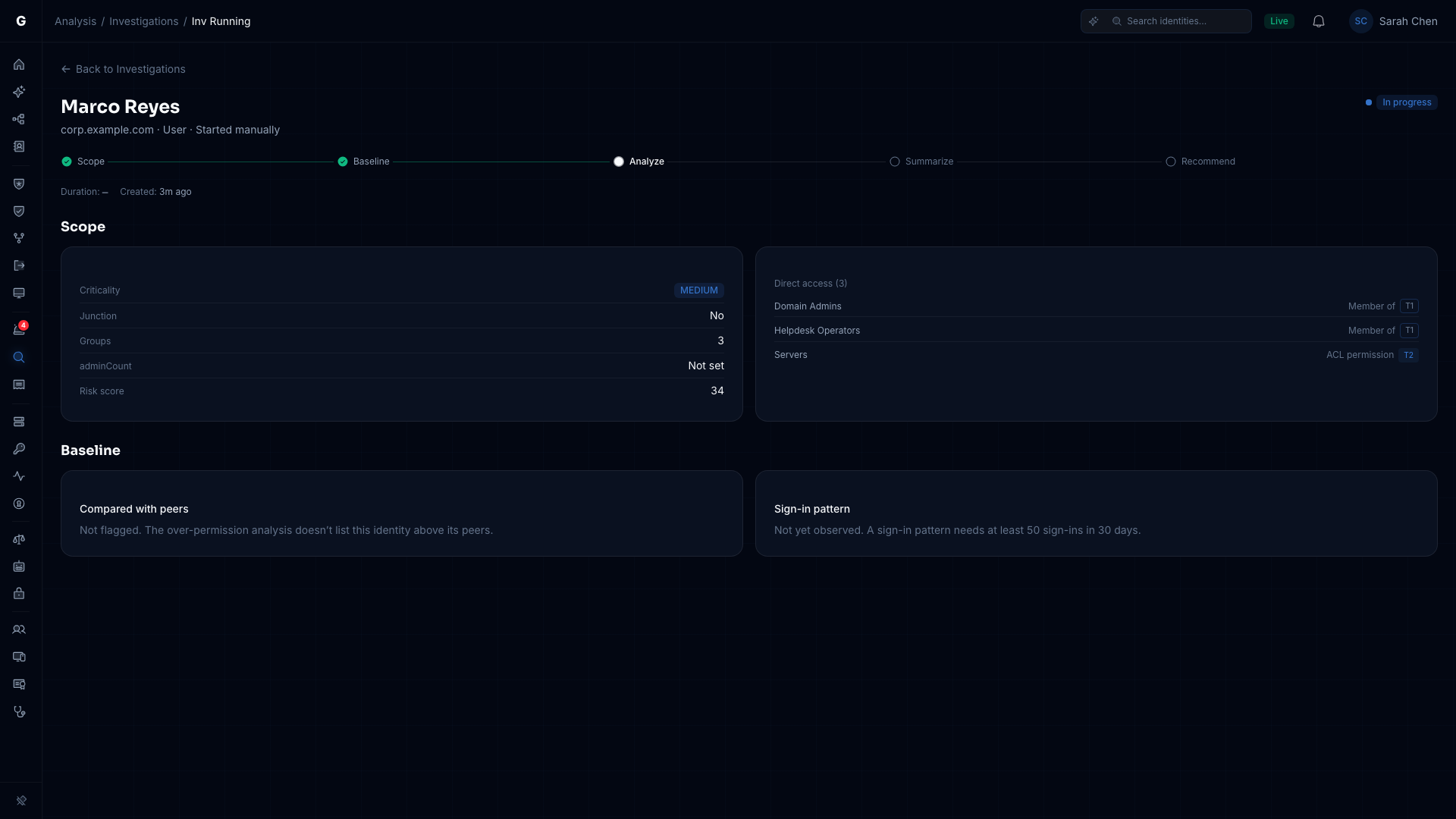
A running report refreshes every 2 seconds. The stepper under the title shows the five steps: Scope, Baseline, Analyze, Summarize and Recommend. The current step is marked, and later steps wait.
A section appears when its step finishes. Until then the page shows only the stepper, so an empty section is never mistaken for "nothing found". The duration shows a dash until the run ends.
A completed report
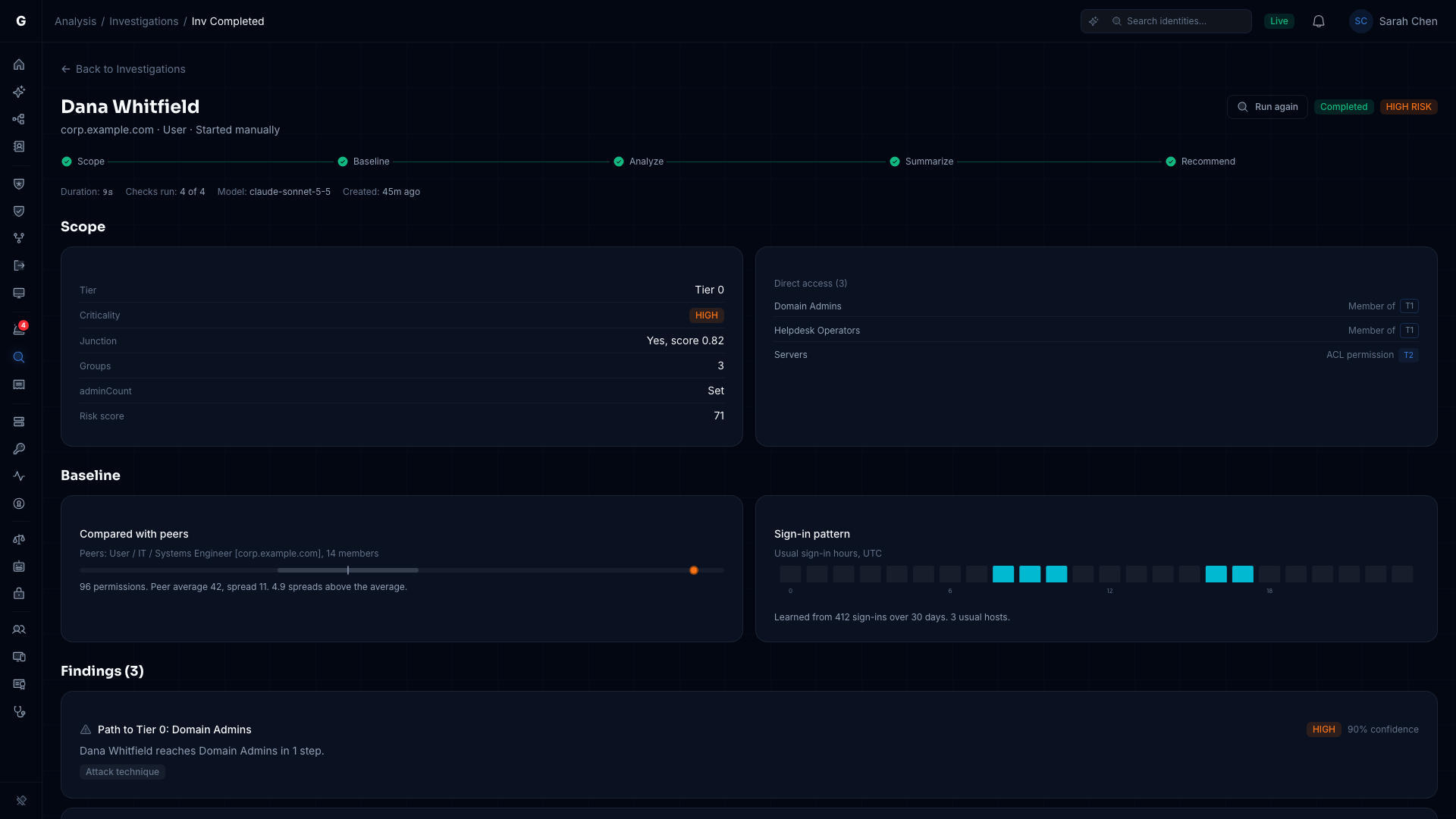
A completed report shows these parts, top to bottom:
- Header: The identity, its domain and type, and how the investigation started. On the right are Run again, the status and the overall risk.
- Facts line: Duration, checks run (for example, "3 of 4"), the AI model used, and when the report was created. If a check didn't finish, "Didn't finish" names it.
- Scope: Criticality, junction status, group count, the adminCount flag and risk score, plus the identity's direct access. The list shows the first 100 entries when there are more.
- Baseline: Compared with peers and Sign-in pattern.
- Findings: Each finding shows a severity, a confidence percentage, the check that found it and, where one applies, a MITRE ATT&CK technique link.
- Summary: The written summary and Key points.
- Recommendations: Each action has a priority, an Operational Safety Metric™ score and grade, and a blast radius where one applies.
- How Graphne reached this: The phase steps, the data sources and a confidence meter. Admins also see Open evidence, which opens the run in the AI Provider page's Evidence tab. See AI Evidence Trail.
Baseline messages
The Baseline cards can explain why they hold no comparison:
| Message | What it means |
|---|---|
| Not flagged | The over-permission analysis doesn't list this identity above its peers. |
| Not yet observed. The peer comparison runs after the next full sync. | No comparison exists yet. |
| Not compared | Peers are compared within a domain, and this identity has none. |
| Not yet observed. A sign-in pattern needs at least 50 sign-ins in 30 days. | Too few sign-ins to learn a pattern. |
| Couldn't load the peer comparison or the sign-in pattern | Run the investigation again. |
A failed report
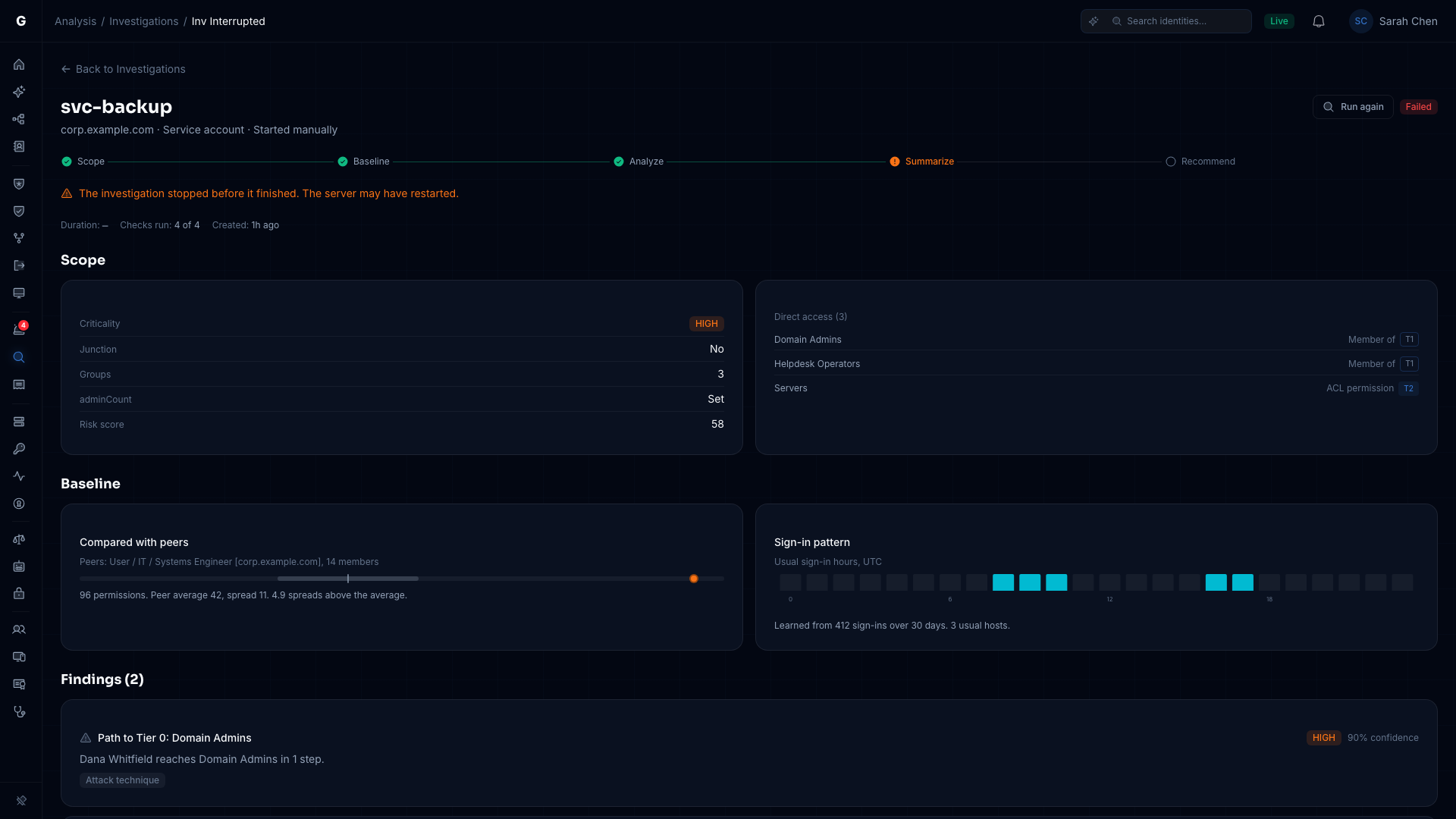
A failed report shows a Failed status and one line with the reason. Select Run again to try again.
| Reason shown | What happened | What to do |
|---|---|---|
| Couldn't read this identity's access, so the investigation stopped at the first step. | The Scope step couldn't read the identity's access. | Select Run again. If it keeps failing, contact support. |
| The investigation stopped before it finished. The server may have restarted. | The run ended early, or it was still "In progress" after 8 minutes and counts as stopped. | Run it again. |
Limits
- 5 investigations run at once, whoever starts them. Investigations that triage starts count toward the 5. A sixth start is refused until one finishes.
- One run per identity. If you start an investigation of an identity that already has one running, the running report opens instead. Nothing new starts.
- 8 minutes at most. A run that's still "In progress" after 8 minutes counts as stopped and shows as Failed.
When a start is refused
The reason appears in the dialog, under the button in the flyout, or in a message after Run again.
| Message | What it means | What to do |
|---|---|---|
| 5 investigations are already running. Start this one when one of them finishes. | The limit is reached. | Wait a minute or two, then try again. |
| AI automation is turned off, so investigations can't start. An admin can turn it back on in AI settings. | An Admin has turned AI automation off. | Ask an Admin to turn it back on. |
| AI is turned off. (tooltip on the disabled button) | An Admin used Turn off AI on the Safety tab. | Ask an Admin to turn AI back on. |
| No identity has that ID. A recent sync may have removed it. | The identity is no longer in the graph. | Search for the identity again. |
| Only users, computers, service accounts, groups and service principals can be investigated. | The identity is another type. | Pick a supported identity. |
| Investigations aren't available right now. Try again in a minute. | The server couldn't record the investigation. | Try again shortly. |
| Couldn't start the investigation. Try again. | The request didn't reach the server. | Check your connection and try again. |
When investigations aren't available
If the Investigations page shows "Investigations aren't available", the server started without an AI provider. Investigations need one that's set up when the server starts.
- An Admin opens Admin > AI Provider and sets up a provider.
- Restart the server.
Operators see the same message with a note to ask an Admin. The identity flyout hides its Investigations section on such a server.
Troubleshooting
The Investigations page says "Couldn't load investigations"
- Cause: The server couldn't be reached, or your account is a Viewer and opened the page from a saved link.
- Fix: Refresh to try again, or ask an Admin for the Operator role.
Start investigation or Investigate doesn't appear
- Cause: You are a Viewer, the license has no AI features, or the identity is a type that can't be investigated.
- Fix: Check your role and license. In the flyout, the section appears only for supported identity types.
Start investigation or Investigate is greyed out
- Cause: The license is read-only, or the identity already has a run going.
- Fix: Hover over the button for the reason. If a run is going, open Open report in the flyout.
A report stays In progress
- Cause: The run stopped, for example when the server restarted.
- Fix: After 8 minutes it shows as Failed. Select Run again.