Compliance: NIST SP 800-53, CIS Controls and PCI DSS Control Status
See which NIST SP 800-53, CIS Controls and PCI DSS controls your identity data passes, fails or can't yet assess, for one connector or all of them, with a daily record.
On this page
- Overview
- Prerequisites
- Step-by-step
- Open the page
- Choose a connector
- Read a framework card
- What each framework's results cover
- Understand the four statuses
- Filter and read the control table
- Follow the evidence behind a control
- Fix a Non-compliant control
- Resolve a Not assessed control
- Manual controls
- How All connectors combines results
- PCI DSS and your cardholder data environment
- Review the trend and past days
- Configuration
- Troubleshooting
Overview
The Compliance page maps the checks GraphnAI already runs to the controls of three frameworks: NIST SP 800-53 Rev. 5 (release 5.2.0), CIS Controls v8.1 and PCI DSS v4.0.1. Each control gets one of four statuses. You can open any control to see the checks behind it, and follow a link to the exact list of accounts or findings that make it fail.
Use it to:
- Hand an auditor a per-control status without building the crosswalk yourself.
- Prioritize fixes by control. Fixing the accounts a control counts moves that control.
- Know what to supply yourself. Every Not assessed control says why.
- Answer "were you compliant on that day?" Each day's result is saved, with the framework edition it was judged against.
The page covers only controls about accounts, access, authentication, audit logging and unsupported versions of Windows. Physical, network and data controls aren't included. See What each framework's results cover.
Prerequisites
- Role: Operator or Admin. A Viewer doesn't see the page in the sidebar, and a Viewer who opens the address sees "Compliance needs Operator access".
- License: Every license includes the page. Some links from a control lead to pages that need a feature your license may not have. Those show a locked chip (see Follow the evidence).
- Data: At least one connector (an Active Directory domain or a Microsoft Entra ID tenant) that has synced and been analyzed. Results appear after the first sync and analysis run.
Step-by-step
Open the page
Select Compliance in the sidebar, in the Exposure section after Security Posture. The page opens on NIST SP 800-53 for All connectors.
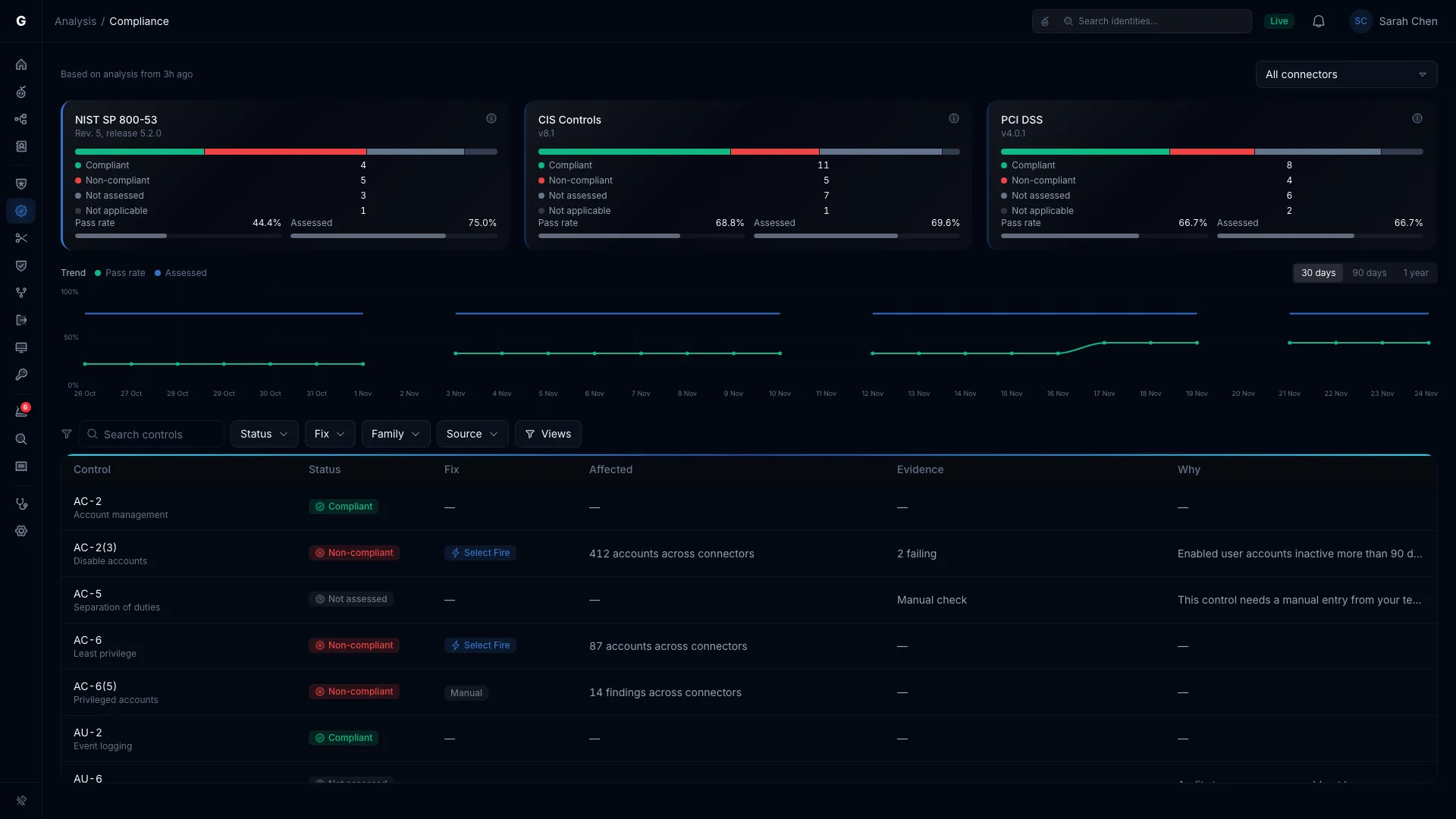
The line above the cards, "Based on analysis from ...", tells you when the oldest analysis behind the results ran.
Choose a connector
Open the Connector list at the top right. It holds All connectors, then each connector by name, with its provider (Active Directory or Microsoft Entra ID) beside it.
- One connector is judged only on the controls that can apply to it.
- All connectors combines them (see How All connectors combines results).
Read a framework card
Each card shows the framework name and edition, a bar split by the four statuses with exact counts, and two measures:
| Measure | Definition |
|---|---|
| Pass rate | Compliant controls as a share of the controls that were assessed (Compliant plus Non-compliant). |
| Assessed | Assessed controls as a share of the controls that apply (everything except Not applicable). |
Read them together. A pass rate of 100% with an Assessed share of 20% means only a fifth of the controls were measured, and the rest are unknown. A high pass rate says little until Assessed is also high.
Select a card to load that framework's controls. Each card has an info button, What
What each framework's results cover
GraphnAI checks only the controls it can judge from identity data, so each framework is a subset of the full standard. The one control in each framework about unsupported software is judged from the Windows release each computer account reports, so it never reads Compliant: a clean result covers only those computers.
| Framework | What its results cover |
|---|---|
| NIST SP 800-53 | Controls about accounts, authentication, audit and unsupported versions of Windows. Physical and network controls aren't included. |
| CIS Controls | Safeguards about accounts, access, authentication, audit logging and unsupported versions of Windows. Other asset, network and data safeguards aren't included. |
| PCI DSS | Requirements about accounts, authentication, audit logging and unsupported versions of Windows. See PCI DSS and your cardholder data environment. |
Understand the four statuses
| Status | Meaning |
|---|---|
| Compliant | A check that covers the whole control ran and passed, and no other check on the control failed or couldn't run. |
| Non-compliant | At least one check on the control failed. The Affected column counts what failed. |
| Not assessed | GraphnAI can't say yet. The Why column gives the reason. |
| Not applicable | The control can't apply to this connector. |
Two rules keep the statuses honest:
- A control reads Compliant only when a check that covers the whole control passed. A partial check can fail a control but can't pass it. If only partial checks passed, the control reads Not assessed.
- Missing data never reads as passing. A check that couldn't run, or whose data hasn't arrived, makes the control Not assessed.
The Affected column counts what the most affected check found, for example "412 accounts". It never adds the counts of two checks together, because they often count the same accounts.
Filter and read the control table
The table lists each control with these columns: Control, Status, Fix, Affected, Evidence and Why. The table scrolls sideways when the window is narrow. Columns and Export are the two icons at the right end of the table header.
- Fix says how a Non-compliant control is fixed: Select Fire, Manual, or a dash for a control that isn't Non-compliant.
- Evidence summarizes the checks behind the control, such as "1 failing · 2 passing". It reads "Manual check" for a control GraphnAI can't check by itself.
Above the table, narrow the list with search and four filters on the filter bar. See Search and Filter Tables:
- Search controls matches every word you type against the control's ID, title, family, text or summary, manual note and the names of its checks. A control must contain all the words to show.
- Status shows only the statuses you pick.
- Fix shows only controls fixed with Select Fire or by hand (Manual).
- Family shows only the control families you pick.
- Source shows only controls with a check of the kinds you pick, such as Security Posture or Identity Inventory.
Each filter option shows how many controls it would show, given the search and the other filters. Hover over an option and select Only to keep just that one. While a filter is on, the bar reads "12 of 148 controls". Select Clear filters, which appears when any search or filter is on, to remove them all. With no match the table says "No controls match these filters".
The filtered view is part of the page address, so you can copy the address to share it. The framework's attribution is in the flyout's Control section.
Follow the evidence behind a control
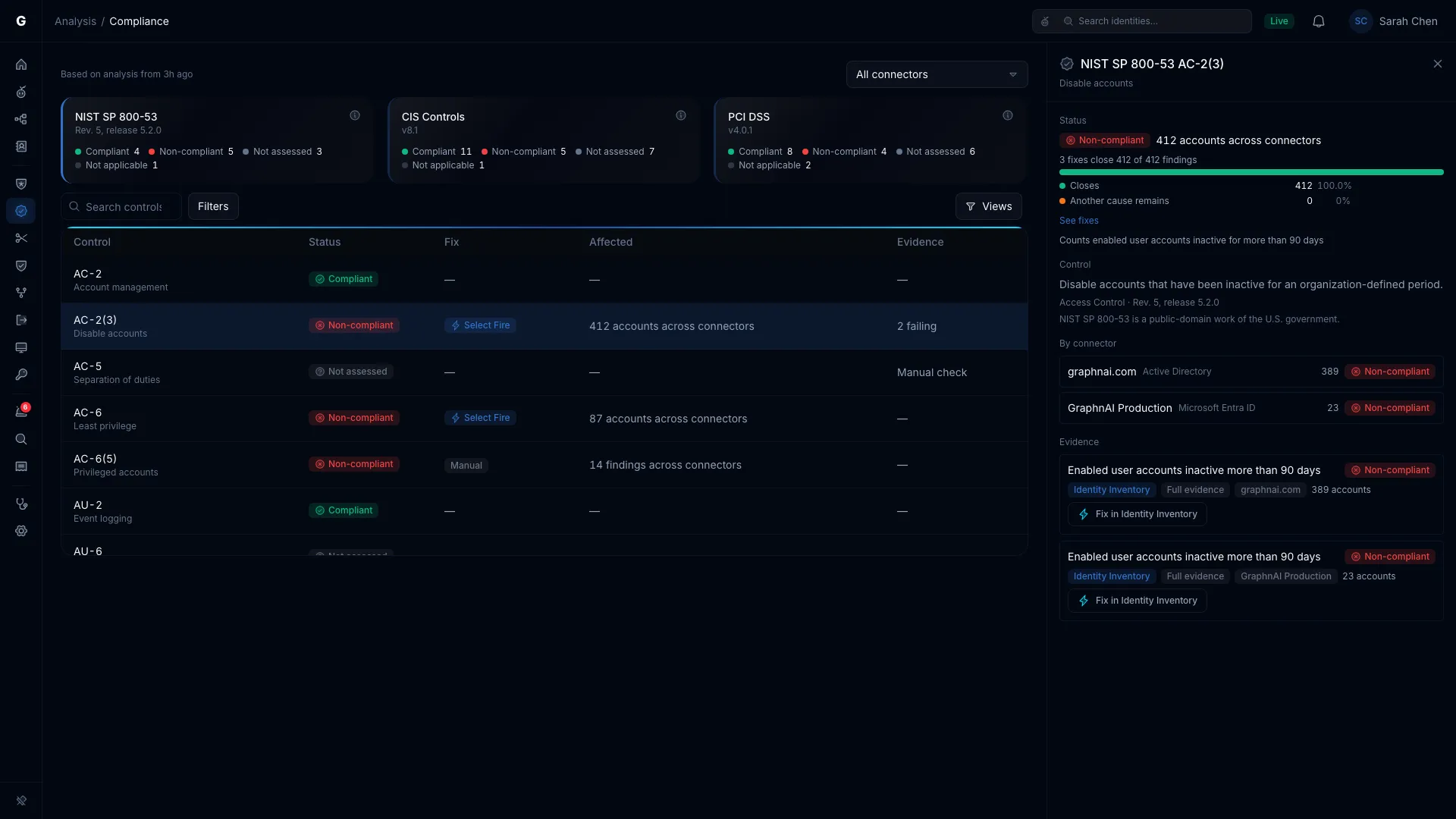
Select a row to open its flyout beside the table. Press Escape or the close button to leave it. The flyout has these sections, and one with nothing to show is left out:
| Section | What it holds |
|---|---|
| Status | The status, the affected count, and the reason for Not assessed or Not applicable. |
| Control | The control's text or summary, its family and edition, and the framework's attribution. |
| Manual check | What you need to confirm yourself. |
| By connector | On All connectors, the control's status on each connector. Select a row to switch to that connector. |
| Evidence | One row per check behind the control, with its fix when the check is failing. |
| Detection coverage | How many detections have proven inputs. |
Each evidence row shows:
- the check's name, its status, and a tag for the kind of check (Security Posture, Identity Inventory, Delegation Risk, Sync freshness, Audit coverage, Audit policy or Detection coverage);
- a strength tag, which says how much a pass counts for;
- its own count and reason;
- a link to the page that lists the affected items, or the way to fix a failing check (see Fix a Non-compliant control).
The strength tags are:
| Tag | Meaning |
|---|---|
| Full evidence | A pass proves the whole control. |
| Partial evidence | A pass covers part of the control. It can fail the control but can't pass it. |
| Shows gaps only | The check can only fail the control. A pass proves nothing. |
The links open the page that lists the same items, with the same count: View findings opens Security Posture, View identities opens Identity Inventory, View delegation paths opens Delegation Risk, and View alerts opens Detection Alerts. The CIS 5.3 and PCI DSS 8.2.6 links open Identity Inventory on the stale preset with an Enabled accounts only chip. The chip makes the table count only enabled accounts, so it matches the control. Select the X on the chip to include disabled accounts again.
When your license lacks the feature behind a link, a locked chip takes its place. Delegation Risk and Detections are the two you may see. The status and count beside the chip don't change. See Licensing and Plans.
Some rows add more detail:
- Stale accounts across several account types show a bar and one line per type, such as "Users · 412 · over 90 days", each opening that type in Identity Inventory. NIST AC-2(3) notes that service principals aren't included, because Microsoft Graph doesn't report their sign-in activity.
- Audit coverage rows list the domain controllers that aren't proven to send their security events, each with a short reason such as "Events not received" or "Unreachable". The wording matches the audit coverage card in Platform Health. A Read-only tag marks a read-only domain controller.
- Detection rows show "No alerts in the last 30 days" or the alert count. Alerts and the "N of M detections have proven inputs" line are context. They never change a status.
Fix a Non-compliant control
Each failing check in the flyout's Evidence section carries its own fix, so you can fix a control without leaving the page. To fix a control with Select Fire:
- Set the Status filter to Non-compliant and the Fix filter to Select Fire.
- Open a control and read its Affected count.
- Find a failing check and select its fix button, as the table below describes.
- For each finding, select Select Fire and decide on the plan.
What a failing check shows depends on its kind:
| Check | What you see |
|---|---|
| A Security Posture check Select Fire can fix, by running the change or by writing a script for it | Fix with Select Fire. It opens the check's findings in place, the first five, each with the usual row actions. Select Fire on a finding opens the same remediation plan Security Posture opens for that finding. Where a script is the fix, Safe Mode shows it. See Select Fire. A finding already fixed reads "Fixed, confirming at next collection". View all findings in Security Posture appears when there are more than five. |
| A stale-account check or a delegation check | Fix in Identity Inventory or Fix in Delegation Risk. Each opens the page whose rows carry Select Fire. |
| A check with no automated fix | "No automated fix", then what to do by hand. "An automated fix is planned." appears when one is on the way. |
When your license lacks the feature behind a fix, the locked chip takes the place of the button.
A check's fix comes from its own findings, the same ones How to fix it describes in Security Posture. A check never reads "No automated fix" where Security Posture offers Select Fire.
See how many fixes close a control
When one change fixes many findings, the control's flyout says so under its status, for example "2 fixes close 20 of 23 findings". A bar shows how many findings the fixes close and how many have another cause. A second line counts findings that are each fixed on their own object, such as "3 more findings, each fixed on its own object."
Select See fixes to open Security Posture in Group by fix, filtered to the control's failing checks and, when you picked one connector, to that connector. See Group by fix.
The control turns Compliant after you apply the fix and the next analysis run confirms it. If a check has no open findings, the list says so and the control updates after that run.
Resolve a Not assessed control
Not assessed always has a reason in the Why column.
| Reason you see | What it means | What to do |
|---|---|---|
| Needs a manual check | GraphnAI can't observe this control. | Check it yourself, using the note in the flyout. |
| GraphnAI's checks passed, but they cover only part of this control | Only partial checks exist, and they passed. | Supply the rest of the evidence yourself. |
| Waiting for the next analysis run | The data for this check hasn't been produced yet. | Wait for the next analysis run after a sync. |
| Activity isn't recorded for N accounts | A stale-account check can't judge accounts with no recorded activity. | Check why those accounts report no activity. See Stale Identity Detection. |
| Checked across all connectors | The control's checks run over the whole estate, not one connector. | Select Show all connectors in the flyout. |
| Possible audit policy gap: none of the events this detection needs has arrived in 7 days | The audit policy may not log the events a detection depends on. | Check the audit policy on your domain controllers. |
| Not yet proven on N of M domain controllers | Some domain controllers aren't proven to send their security events. | Read the list under the evidence row and fix each reason. |
| This check couldn't run: GraphnAI doesn't have the data it needs on this connector | A source failed or isn't collected. | Check the connector's sync on Platform Health. |
Manual controls
Some controls need a person to confirm them: multifactor authentication (MFA) for on-premises Active Directory sign-in, MFA for remote access such as VPNs and remote desktop gateways, and access reviews. GraphnAI can't see these, so they stay Not assessed, with a note saying what to check. GraphnAI doesn't support attesting them yet. A failing check on the same control still makes it Non-compliant.
How All connectors combines results
On All connectors, each connector is judged on the controls that can apply to it, and the results are combined per control:
- Any Non-compliant connector makes the control Non-compliant.
- Otherwise any Not assessed connector makes it Not assessed.
- Otherwise a Compliant connector makes it Compliant.
- A connector where the control doesn't apply drops out of the combination.
The Affected count is a sum over connectors, labeled "across connectors". An identity stale in both Active Directory and Entra ID counts twice.
A control Not applicable on a connector type reads Not applicable there. Windows audit controls, for example, don't apply to a Microsoft Entra ID tenant. An estate of domains that all pass an audit control therefore reads Compliant, even with an Entra ID tenant present. A control that no connector can satisfy reads "Doesn't apply to any connector". With no connector synced, every control reads Not assessed ("No connector has synced yet"), never Not applicable.
PCI DSS and your cardholder data environment
GraphnAI evaluates every account in the directory. It doesn't know which systems are in your cardholder data environment. A PCI DSS result therefore covers more than your PCI DSS scope. The PCI DSS card's info button shows this disclosure. Treat the result as input to your own scoping.
Review the trend and past days
GraphnAI saves one record a day for each connector and framework, after analysis runs. The Trend chart under the cards plots Pass rate and Assessed over 30 days, 90 days or 1 year.
- A day with no record is a gap in both lines. GraphnAI never fills it in, and hovering it says "No record".
- A dashed line labeled "
from here" marks the first day a record was made under a new framework edition. - Select a recorded day to open that day's record in place of the table. It shows the date, the framework and edition, the four status counts, and each control's status and count. It doesn't show reasons or evidence, because only today's results do.
- Select Back to today to return to the live table.
If a record was made under an earlier edition or an earlier version of GraphnAI's control mapping, a notice above it says so, for example "Recorded against PCI DSS v4.0. Some controls may differ from today's v4.0.1 list." A control no longer in the catalog shows "No longer in the catalog".
With no records yet, the chart says "No history yet. GraphnAI saves one record a day after analysis runs." If a day has no record, the page says "No compliance record was saved for that day."
Configuration
There is nothing to configure. The page uses the frameworks, editions and mapping that ship with your version. The framework attributions are:
- NIST SP 800-53: control identifiers, titles and text from Rev. 5 (release 5.2.0), a public-domain NIST work.
- CIS Controls v8.1: safeguard identifiers and short titles. The descriptions are GraphnAI's summaries, not CIS text.
- PCI DSS v4.0.1: requirement numbers. The descriptions are GraphnAI's summaries, not PCI SSC text.
Troubleshooting
| Symptom | Cause | What to do |
|---|---|---|
| Every control reads Not assessed with "Waiting for the next analysis run" | The connector is new, or hasn't been analyzed since an upgrade. | Wait for the next sync and analysis run. A notice above the cards says so. |
| "No connector has synced yet" | No connector has completed a sync. | Configure and sync a connector. |
| Pass rate is high but few controls are Compliant | Assessed is low, so little was measured. | Open the Not assessed controls and resolve their reasons. |
| A control reads Not applicable on one connector | The control can't apply to that provider. | None. It drops out of All connectors. |
| The trend has gaps | No record was saved on those days, for example because no sync finished. | None. The next sync that finishes saves that day's record. |
| The Affected count on All connectors is higher than the identities you count | The count adds the connectors together, so one identity can count twice. | Select one connector to see its own count. |
| "Compliance needs Operator access" | Your role is Viewer. | Ask an Admin to change your role. |
| "Couldn't load compliance results" | The server couldn't build the result. | Select Retry. If it persists, open Platform Health. |