Search and Filter Tables: Filters, Conditions, Saved Views and Regex Matching
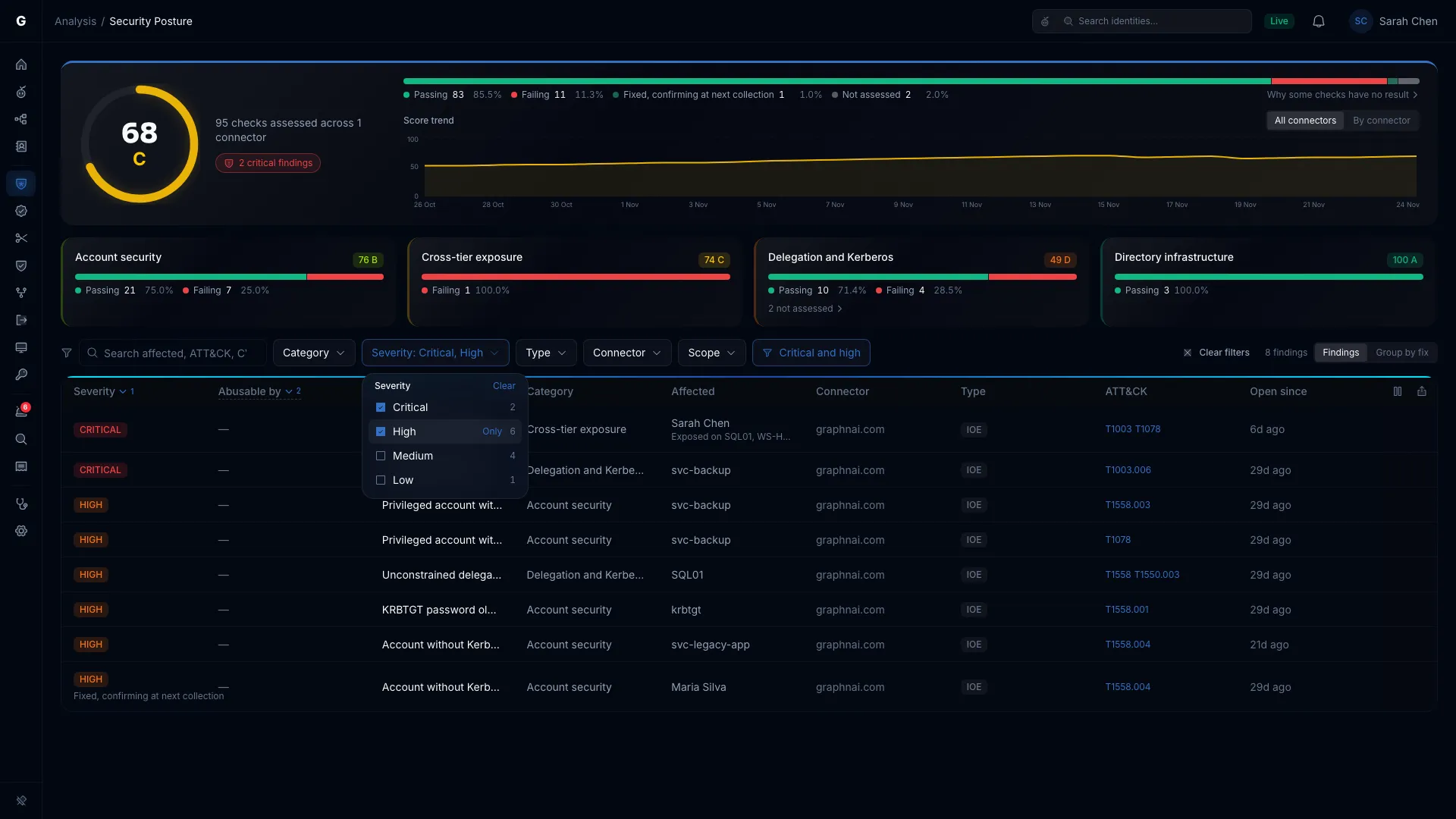
Search and filter any GraphnAI table the same way: one filter bar, typed conditions, saved views, and a link that keeps your view.
On this page
- Overview
- Prerequisites
- Step-by-step
- Search a table
- Filter by one or more values
- Exclude values with Is not
- Filter by time
- Add a typed condition
- Use a built-in view
- Save a view
- Open and edit a saved view
- Rename, set as default or delete a view
- How the default view applies
- Copy a link to a view
- Export and import views
- When the license is read-only
- Read the chips and the match count
- Narrow screens and split view
- Choose columns and export
- Share a view or go back
- Configuration
- Troubleshooting
Overview
Every data table in GraphnAI searches and filters the same way. One filter bar sits above the table. It always stays on one line, however narrow the window gets.
The bar holds a search box, the page's filters, Add condition for typed conditions, a Views menu, a chip for each filter that's on, and Clear filters. A page shows only the controls that make sense for its table. Detection Alerts and Identity Inventory offer the most. A card page offers a search box, plus the cards above the table.
Columns and Export sit at the right end of the table header, as icons. Hover over an icon to read its name. Where a table has an Actions column, the icons sit in its header, and the column keeps its label.
Everything you set is in the page address. Reload the page, press Back, or share the link, and the view is the same.
Prerequisites
- A role that can open the page. Filtering changes only what you see. It never changes data.
- A table with rows. A page that's still loading shows its numbers once the rows have finished arriving.
Step-by-step
Search a table
- Type in the search box. Its name says what it searches, for example Search alerts or Search controls.
- The table keeps the rows that contain every word you typed. Case doesn't matter.
- To clear the search, select the X in the box.
The search covers the text columns the table shows, such as names, titles and domains. It doesn't cover dates or numbers. The address updates after you stop typing, so typing doesn't fill your Back history.
Filter by one or more values
- Select a filter, for example Severity. A list of values opens, each with a count.
- Tick one or more values. The table keeps the rows that have any of them.
- The button now names your choice, for example Severity: Critical, High. Past two values, it reads Severity: 3 selected.
- Select Clear at the top of the list to remove that filter.
Each count is how many rows the value would show with your other filters. A value with no rows stays in the list, dimmed, with a count of 0. A long list has a box at the top to search its values.
To pick a single value fast, hover over it and select Only. The filter then holds just that value.
Exclude values with Is not
A filter that offers it shows Is | Is not at the top of its list.
- Open the filter and choose Is not.
- Tick the values to leave out.
- The button reads Severity: not Low, Info. The table keeps every row without those values.
Switch back to Is to keep rows with the ticked values again.
Filter by time
A time filter, such as Last seen, offers a few windows and Any time.
- Open the filter and choose a window, such as Last 7 days.
- For your own dates, choose Custom range. From and To boxes appear.
- Fill in one or both. A box left empty leaves that end of the range open.
Add a typed condition
Where a table offers it, Add condition matches a column more precisely than a filter list. For example, "Risk score is at least 70" or "Name matches regex".
- Select Add condition.
- Choose a Field, an Operator and a Value.
- Select Add. The condition shows as a chip.
- To change a condition, select its chip and choose Save. To remove it, select the X on the chip.
| Field type | Operators |
|---|---|
| Text | is, is not, contains, does not contain, starts with, ends with, matches regex (on fields that allow it) |
| Number | is, is not, is greater than, is at least, is less than, is at most, is between |
Conditions combine: a row must match every one. You can add up to 10. Once you reach 10, Add condition is unavailable.
Matches regex takes a regular expression in RE2 syntax. It ignores case and matches anywhere in the text. RE2 has no backreferences or lookahead. A pattern can be up to 200 characters. If the pattern isn't valid, the builder says "This pattern isn't valid. Check it and try again." and doesn't add it.
For is between, two boxes named From and To appear. Enter the lower number first.
Use a built-in view
A Views menu applies a ready-made set of filters in one step, such as Open critical and high on Detection Alerts. Select Views, then a view. While a view is on, the button shows its name. Select the view again to turn it off.
A view is only a shortcut. Its filters appear on the bar like any others, so you can adjust them.
Save a view
Every table with the filter bar has a Views button. Where a page offers ready-made views, the menu lists them under Built-in. Your own views come next, under My views, in alphabetical order. They're personal, so only you see them, and every role, Viewer included, can save them.
A saved view holds:
- the search and every filter, including conditions, ranges and card picks;
- the page's own settings, such as the Identity Inventory preset and Show delegated, or the framework and domain on Compliance Frameworks;
- the domain on Host Plane and Delegation Posture;
- the sort, on Detection Alerts and Identity Inventory only.
It doesn't hold the columns, the open tab or the row you have open.
To save a view:
- Set up the table the way you want it.
- Select Views, then Save as new view….
- Enter a name of 1 to 60 characters. Names are unique within a table, ignoring case.
- To open this view whenever you visit the page, tick Open this view by default.
- Select Save.
Save as new view… is unavailable until something is set. It's also unavailable when the table already has 20 views, with the reason on hover. If the filters are too many to store, the toast says "This view has too many filters to save. Remove some and try again."
Open and edit a saved view
- Select Views, then the view. The button shows its name.
- Change any filter. The button reads "Weekly Kerberoasting (edited)".
- To overwrite the view with what's on the bar, select Views, then Save changes.
Select the active view again while it's unedited to remove what it set. A scope you can't clear, such as the domain, stays. While it's edited, selecting it goes back to what the view saved. Clear filters and picking a built-in view end the active saved view.
Rename, set as default or delete a view
Select the … beside a view in My views and choose an action.
| Action | What it does |
|---|---|
| Rename | Opens Rename view with the current name selected. |
| Set as default | Opens this view whenever you visit the page. The view shows a Default tag. |
| Remove as default | Stops opening it on its own. The view stays in the list. |
| Delete | Asks "Delete view {name}? This can't be undone." Select Delete to confirm. A deleted default is no longer the default. |
One view per table can be the default.
How the default view applies
GraphnAI applies your default view once per visit, when you open a page from the sidebar or by typing its address. It applies only to a link with no parameters other than the tab and the sort. A link from a notification, from Graphne or from another page carries its own filters, so the default never overrides it.
Clear filters clears to no filters. It doesn't bring the default back. The default view keeps the sort in the link you opened.
Copy a link to a view
Select Views, then Copy link. The toast says "Link copied". Anyone who opens the link sees the same filters, whether or not they have views of their own. If your browser blocks copying, the toast says "Couldn't copy the link. Copy it from the address bar."
Export and import views
Use a file to move views between people or instances. Views are personal, so sharing is by link or by file.
To export, select Views, then Export my views. The browser downloads graphnai-views-<table>-<date>.json, for example graphnai-views-detection-alerts-2026-11-17.json. The file holds this table's views only: each name and its saved filters, plus the export time. It holds no identity data and no default. With no saved views, Export my views is unavailable.
To import, select Views, then Import views…, and choose a file.
- A view whose name matches one you have gets " (2)" added, then " (3)", and so on.
- Imported views are never the default.
- A table keeps at most 20 views. You can have saved views on up to 50 tables. Extra views are skipped.
- A toast reports "Imported 3 views." and one line for each reason a view was skipped.
- A file that isn't a GraphnAI views file shows "This file isn't a GraphnAI views file." Nothing is imported.
A value your instance doesn't have, such as a domain name, matches nothing. It behaves like an out-of-date link.
When the license is read-only
While the license is read-only, Save as new view…, Save changes, Rename, Set as default, Remove as default, Delete and Import views… are unavailable. Hover to read why. Opening a view, Copy link and Export my views still work.
Read the chips and the match count
- A chip appears for each filter that isn't already shown on a button, such as a condition, a card pick or a link from another page. Select the X to remove it.
- While any filter is on, the match count at the right reads "12 of 480 alerts". On a page that filters on the server, it reads "12 alerts".
- Clear filters removes the search and every filter. It keeps the sort, the open tab, and the row you have open.
On a table that's still loading, filters apply to the rows so far. The counts on filters and cards wait until the rows have finished arriving, and the footer says "so far" until then. A table that stopped at its row limit says its filters cover only the rows loaded.
Narrow screens and split view
The bar never wraps. As the window narrows, the search box gets smaller. Then chips fold into a +N button, and filters fold into More filters. Clear filters, the match count and the page's own switches stay at the right.
When a row's flyout is open, the table is narrower. The bar then folds its filters into one Filters button, with the chips that fit and +N. Select Filters to see every filter and Add condition.
Choose columns and export
- Select the Columns icon at the right end of the table header to show, hide and reorder columns.
- Select the Export icon to download the rows. The file follows the columns you can see, in their order.
Hiding a column doesn't turn off a filter on it. The filter still works, and its chip stays.
Share a view or go back
Because every control writes to the page address, Back undoes one change to the filters. Copy the address to share the view. Someone who opens it sees the same filters. A value in an old or edited link that the page doesn't know is ignored, and the page opens less filtered.
Configuration
The bar has no settings. Each page decides which filters, conditions and views it offers. The pages are listed in the guides linked under Related.
Troubleshooting
| Symptom | Cause | Fix |
|---|---|---|
| A filter shows no counts | The table is still loading rows. | Wait for the footer to stop saying "so far". |
| "No alerts match these filters" | The filters leave no rows. | Select Clear filters, or remove one chip. |
| "No alerts match your search" | The search words match no row. | Try other words, or clear the search. |
| Add condition is unavailable | The table already has 10 conditions. | Remove one, or edit one. |
| Save as new view… is unavailable | Nothing is set, the table has 20 views, or the license is read-only. | Set a filter, delete a view, or apply a license. |
| The default view didn't open | The link carried filters, or you already used the page this visit. | Select Views, then the view. |
| The regex isn't accepted | The pattern is invalid, uses a backreference or lookahead, or is over 200 characters. | Simplify it. RE2 syntax only. |
| Part of the bar is missing | The window is narrow, so it folded the control. | Select More filters, Filters or +N. |