Graphne, the AI assistant
Ask about any identity. Check every step of the answer.
Ask for every path from one account to a privileged group, and you get the paths and the steps Graphne took to find them. It reads through its own read-only account and changes nothing.
Read the Graphne guideAsk in plain language
The questions an identity admin asks, answered from your own graph.
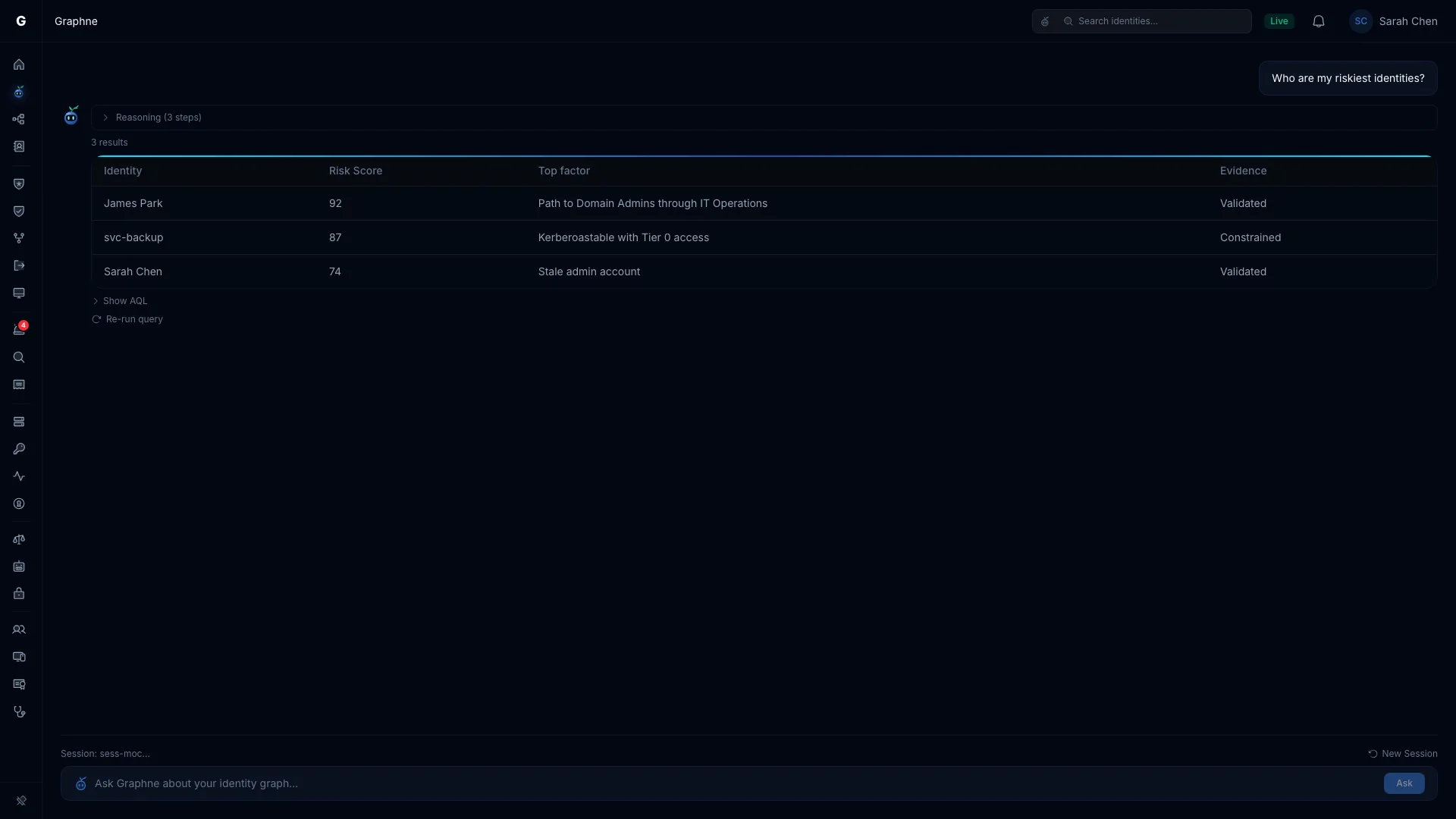
Graphne picks the tools and answers from your graph. Follow-ups build on the last few turns, so “now only Finance” narrows the answer you have.
- List service accounts with more than 50 permissions
- Show all paths from Bob to Domain Admins
- How many identities are over-permissioned compared to their peers?
- Find the most over-permissioned user in IT and suggest a fix
Shortest path first
When there are several paths, the shortest is drawn on its own above the rest.
The query behind it
Show AQL lets you read exactly what Graphne asked the graph.
A Launch Select Fire™ button
When Graphne finds a misconfiguration, it can offer the fix with the details filled in.
It shows its work
Every answer comes with the steps behind it.
Open Reasoning above any answer to see each tool Graphne called, what it asked, what came back and how long it took, plus the model and cost of the answer.
While a tool runs, Graphne wears that job’s kit: a headlamp for a query, a hard hat for a fix.
An evidence trail for every run
Every answer and AI task leaves a record of the model, its exact instructions and each graph read with its result. Admins open them on the Evidence tab. Acting on a Graphne recommendation in Select Fire is recorded too, with who decided.
- GraphneQueryFind identities by name0.3 s
Asked with Name: Bob
1 identity found
- GraphneQueryFind access paths1.2 s
Asked with From: Bob, To: Domain Admins
4 paths. Shortest path: 2 hops
- GraphneRemediationOffer a fix0.4 s
Launch Select Fire with the finding filled in
Explain and investigate
From “why is this flagged?” to a written report.
Explain this finding
Select Explain with Graphne on an inventory row, junction, alert or dashboard finding. Graphne says what an attacker could do with it and how far a compromise would reach, then suggests actions.
Investigate one identity
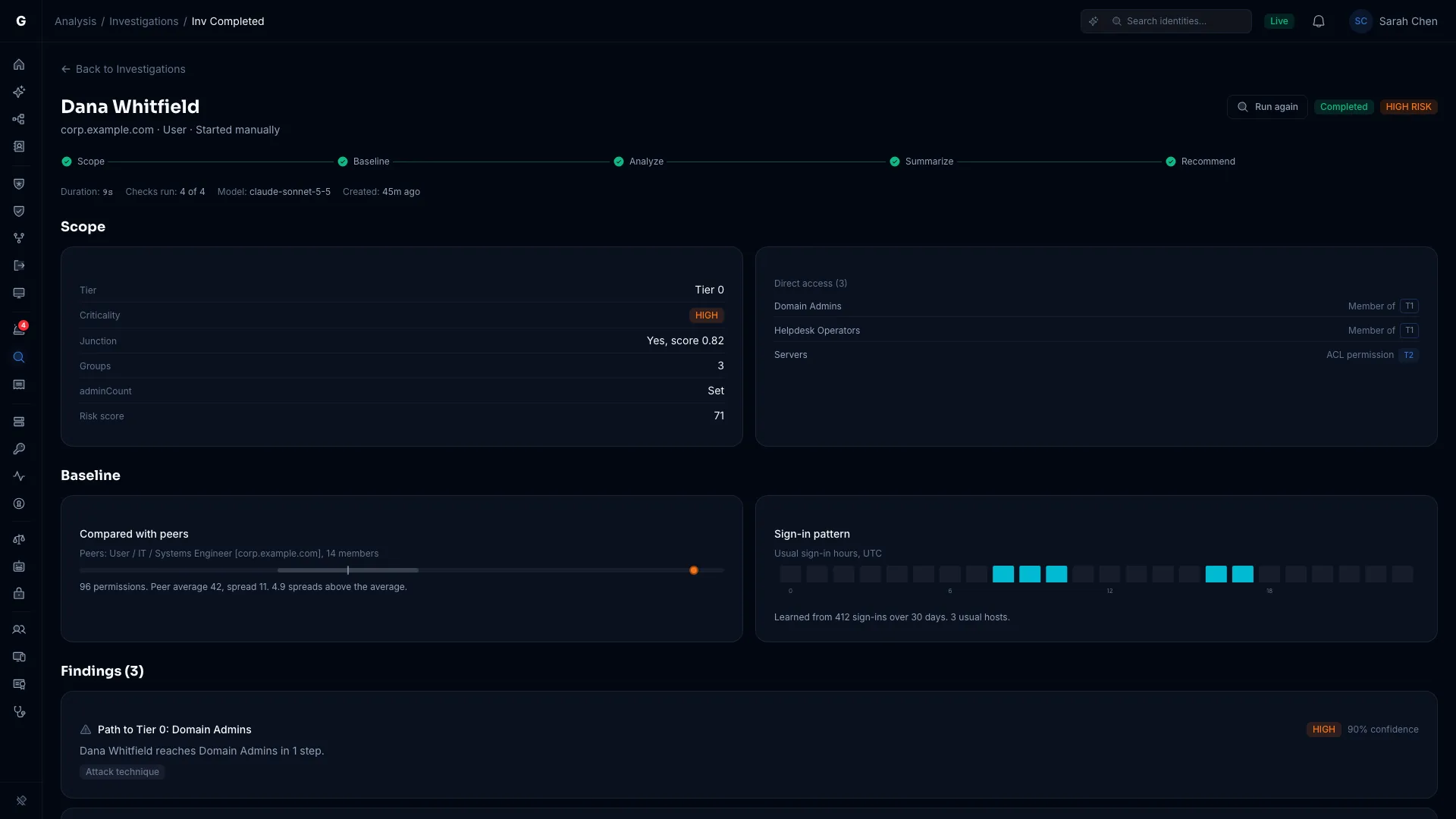
Start an investigation from the Investigations page or an identity’s flyout, or ask Graphne to “Investigate svc-backup”. The report fills in as it runs:
- Scope. Criticality, tier, risk score and direct permissions.
- Baseline. How it compares with its peers, and its usual sign-in hours.
- Analyze. Findings, rated by severity and confidence.
- Summarize. A short written summary.
- Recommend. Actions to take, each scored for operational safety.
Only the summary uses AI. If the provider doesn’t answer, you still get the findings.
Built-in knowledge
It knows what WriteDACL on Domain Admins means before it opens your graph.
Graphne explains the attack behind an edge from its own knowledge base, without looking anything up online.
For anything else, Graphne can search Microsoft Learn.
- Tier 0, the tier model and delegation
- Dangerous permissions, mapped to MITRE ATT&CK
- Kerberoasting, DCSync, RBCD, Shadow Credentials, Golden Ticket and NTLM relay
- Exchange escalation chains, AD CS attacks and AdminSDHolder
- Entra ID roles and dangerous OAuth2 app permissions
- Stale identities, orphaned admins and blast radius
Graphne and its crew
One assistant. Six specialists, each in its kit.
Graphne picks the tools for each question, and each tool belongs to a specialist.
Graphne
GraphnAI’s AI assistant. Ask about any identity, path or alert and it brings in the right specialist.
Query
Answers graph questions and finds access paths with read-only queries, and shows you each one.
Analysis
Scores identity risk, and rates how safe a change is with the Operational Safety Metric.
Investigation
Investigates an identity and writes a report with the evidence.
Remediation
Plans the fix in Select Fire and simulates it first. Every change can be undone.
Triage
Checks each alert against the identity behind it and tells you which ones matter.
Monitor
Watches in the background and tells your team when a critical alert fires or your risk score jumps.
Trust and control
Least privilege, and an off switch.
Graphne only reads. A fix it suggests opens in Select Fire, where you simulate it and decide how it runs.
Off until you choose a model
Graphne calls only the AI providers an Admin adds, with your own key.
Any provider, including your own
OpenAI, Gemini, Claude, or a local model on any OpenAI-compatible endpoint, which suits an air-gapped network.
Its own read-only database account
A separate account that reads only what Graphne needs and can’t change anything.
Directory text is data
A user description that says “ignore your instructions” is shown as text and never followed.
Stop, or switch AI off
Stop ends one answer. Turn off AI stops all AI work at once, and detections keep running.
Tool policy and rate limits
Admins can turn any tool off or limit it to Admins, and each person is rate limited.
A hard spending ceiling
AI calls stop at your monthly ceiling, and triage falls back to its deterministic assessment.
Every agent, on one card
The Safety tab lists each AI agent and what it reads and writes through, so you can confirm none can change your directory directly.
Quality follows the model.
Graphne writes queries and summaries with the model you configure, so a model that follows instructions well gives better answers. Choosing a model · AI safety controls
Ask Graphne about your own directory.
The Public Preview is free for 30 days from your first sync, on your own server.